
Actions
Actions are the steps of a macro. Open a button (right-click a pad, Edit button…), switch to the Actions tab and use + Add action next to the list you want to fill: When pressed, When released or When held. Faders have their own list, When the level changes, on the Actions tab of the fader editor.
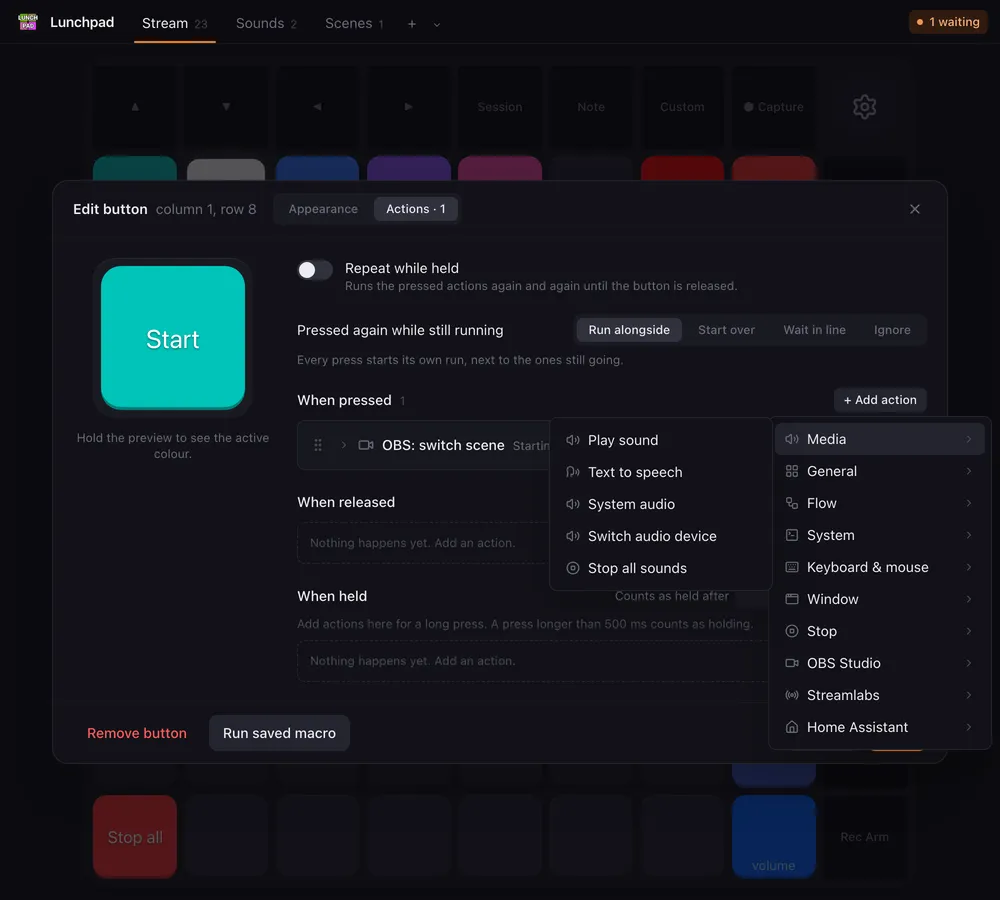
A few things hold for every action:
- Order. Actions run top to bottom. Drag the handle on the left of a row to move it.
- Waiting. Actions that take time have a Wait switch. On, the next action starts when this one is done. Off, the next one starts right away and both run side by side. See Action lists.
- Sets. Conditions, flip flops and push-to-talk come as markers that belong together. The actions you drag between the markers are the ones they control.
- Placeholders. Many text fields take
{{placeholders}}such as{{velocity}}or a variable of yours. Type{{to pick one. See Variables and placeholders.
Media
- Play soundPlay an audio file on any output device, trimmed to the part you want.
- Text to speechRead a text aloud with one of your system's voices, variables included.
- System audioSet, nudge or mute the volume of your speakers or microphone, fixed or from a fader.
- Switch audio deviceMake another speaker or microphone the system default with one press.
- Stop all soundsSilence every sound Lunchpad is playing, whichever button started it.
General
- DelayWait a number of milliseconds before the next action starts.
- Switch pageShow another page on the Launchpad and in the window.
- Run another buttonRun the actions of another button, on any page, as part of this macro.
- Set colourChange the colour of this or any other button, and keep it.
- Set faderMove a fader to a value, as if its pad had been pressed.
Flow
- ConditionRun some actions only when a variable passes a check, and others when it does not.
- LoopRepeat some actions a set number of times, until a variable passes a check, or until the macro is stopped, with a time limit.
- Flip flop: AAlternate between two sets of actions on every press, for toggle buttons.
- Push-to-talk onHold your voice chat's push-to-talk key while a part of the macro runs.
System
- Launch applicationStart a program or script, pass it arguments, and optionally keep what it prints.
- HTTP requestCall a web address with any method, headers, body, file upload and login, and keep the answer.
- Run scriptRun a small JavaScript snippet that reads and changes variables, and drives Lunchpad itself.
- Set variableRemember a value, fixed or built from placeholders, for later actions and other buttons.
- Add to variableCount up or down by adding a number to a variable.
- Debug windowShow a window with a text of your choosing, placeholders filled in, to watch what a macro's variables hold.
Keyboard & mouse
- Hotkey sequencePress, hold and release keys, pause, and type text, exactly as if you did it on the keyboard.
- Mouse sequenceMove, click, scroll and drag the mouse, step by step, like a hotkey sequence for the pointer.
- Get mouse positionRemember where the pointer is, to come back to it or to compute from it.
Window
- Get windowFind a program's window, the one in front or by title, and remember its handle, position, size and screen in a variable.
- Set windowBring a program's window to the front, minimize, maximize, move or resize it, put it on another screen, center or close it.
- Get screenRemember a screen's size, position, scale and DPI in a variable, to place windows and the pointer by them.
Stop
OBS Studio
- OBS: switch sceneMake a scene live in OBS Studio or Streamlabs Desktop, optionally in another scene collection.
- OBS: show or hide sourceShow, hide or toggle a source in a scene of OBS Studio or Streamlabs Desktop.
- OBS: set audioMute, unmute or toggle an audio source in OBS Studio or Streamlabs Desktop, and set its volume, fixed or from a fader.
- OBS: toggle filterTurn a filter of a source on or off in OBS Studio or Streamlabs Desktop.
- OBS: stream, record, replayStart, stop or toggle the stream, the recording or the replay buffer in OBS Studio or Streamlabs Desktop.
- OBS: save replaySave the replay buffer of OBS Studio or Streamlabs Desktop to a file.
- OBS: studio modeTurn studio mode on or off, or push the preview scene live, in OBS Studio or Streamlabs Desktop.
- OBS: trigger hotkeyFire one of OBS Studio's hotkeys over the websocket, without giving OBS the focus.
Streamlabs
- Streamlabs: switch sceneMake a scene live in OBS Studio or Streamlabs Desktop, optionally in another scene collection.
- Streamlabs: show or hide sourceShow, hide or toggle a source in a scene of OBS Studio or Streamlabs Desktop.
- Streamlabs: set audioMute, unmute or toggle an audio source in OBS Studio or Streamlabs Desktop, and set its volume, fixed or from a fader.
- Streamlabs: toggle filterTurn a filter of a source on or off in OBS Studio or Streamlabs Desktop.
- Streamlabs: stream, record, replayStart, stop or toggle the stream, the recording or the replay buffer in OBS Studio or Streamlabs Desktop.
- Streamlabs: save replaySave the replay buffer of OBS Studio or Streamlabs Desktop to a file.
- Streamlabs: studio modeTurn studio mode on or off, or push the preview scene live, in OBS Studio or Streamlabs Desktop.
Home Assistant
- Home Assistant: on / offTurn any Home Assistant entity on or off, or toggle it, from a pad.
- Home Assistant: set a valueSet a light's brightness or colour temperature, a cover, a fan, a speaker's volume, a number or a thermostat, fixed or from a fader.
- Home Assistant: call a serviceCall any Home Assistant service with your own JSON data, for everything the other two actions do not cover.