
Action lists
The Actions tab of the button editor holds what a button does. There are three lists, and each runs at a different moment.
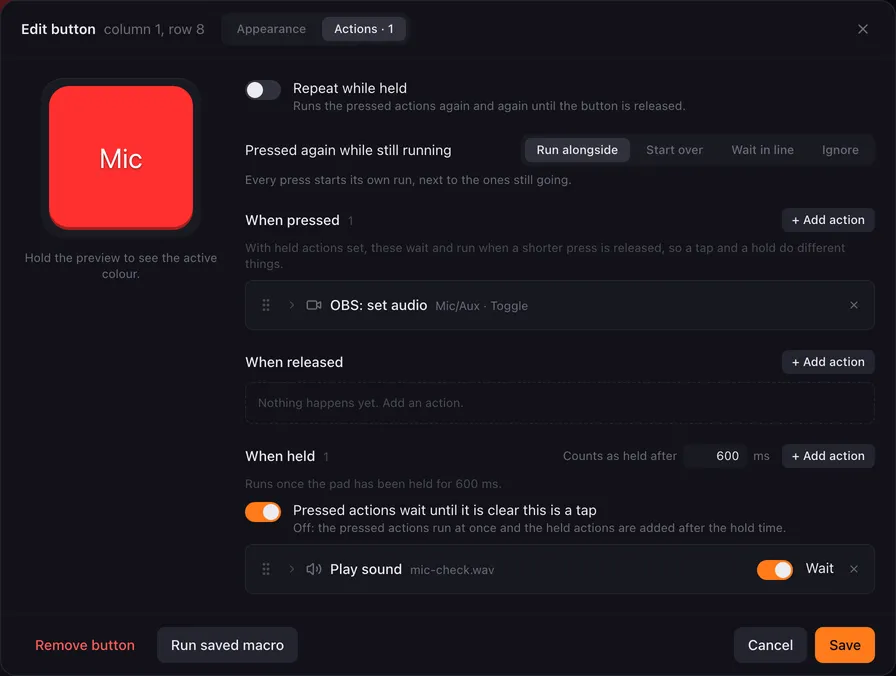
| List | Runs… |
|---|---|
| When pressed | when you press the pad. |
| When released | when you let go of it. |
| When held | when you hold the pad longer than Counts as held after (100 to 5000 ms, 500 ms by default). |
Click + Add action next to a list to add an action. The menu groups the actions the same way the action reference does. OBS Studio, Streamlabs and Home Assistant actions only appear once you switch the integration on in the settings.
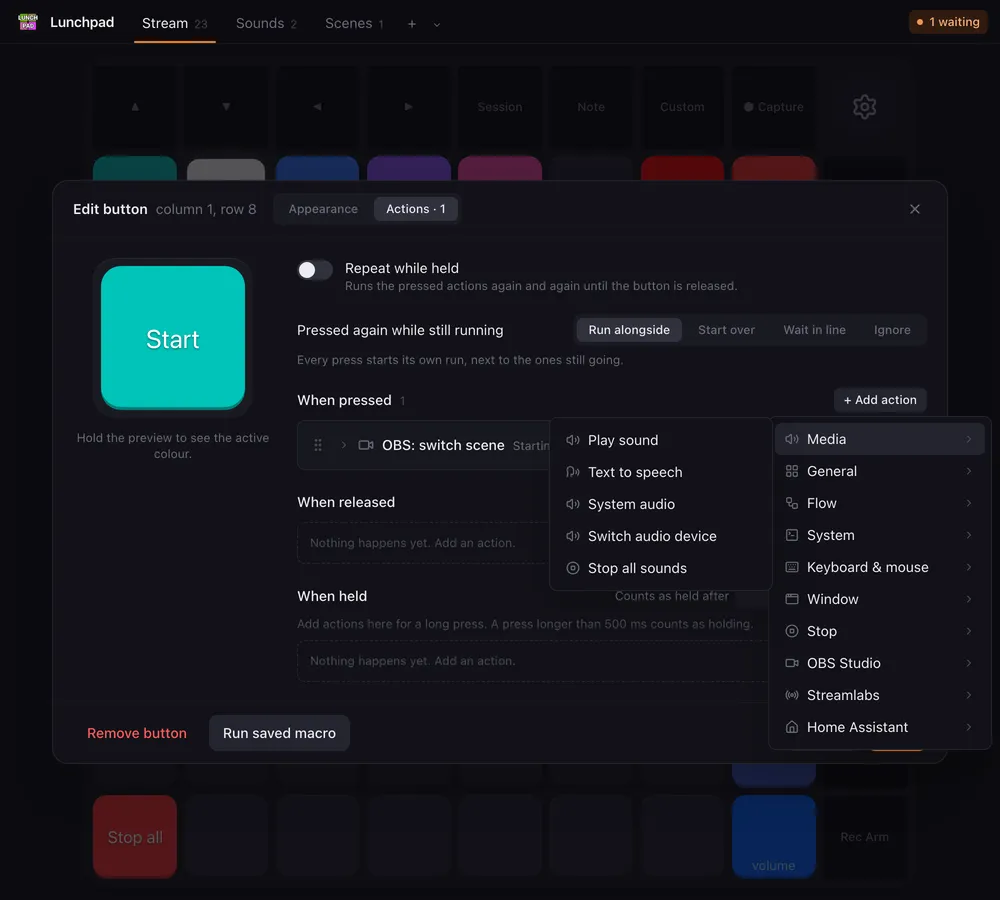
A new action opens expanded so you can fill it in. Click an action’s title to fold or unfold it, drag the handle on its left to reorder it, and click the cross to remove it.
Copy, paste and drag
Section titled “Copy, paste and drag”Right-click an action for Copy action, Duplicate, Paste … after this and Remove.
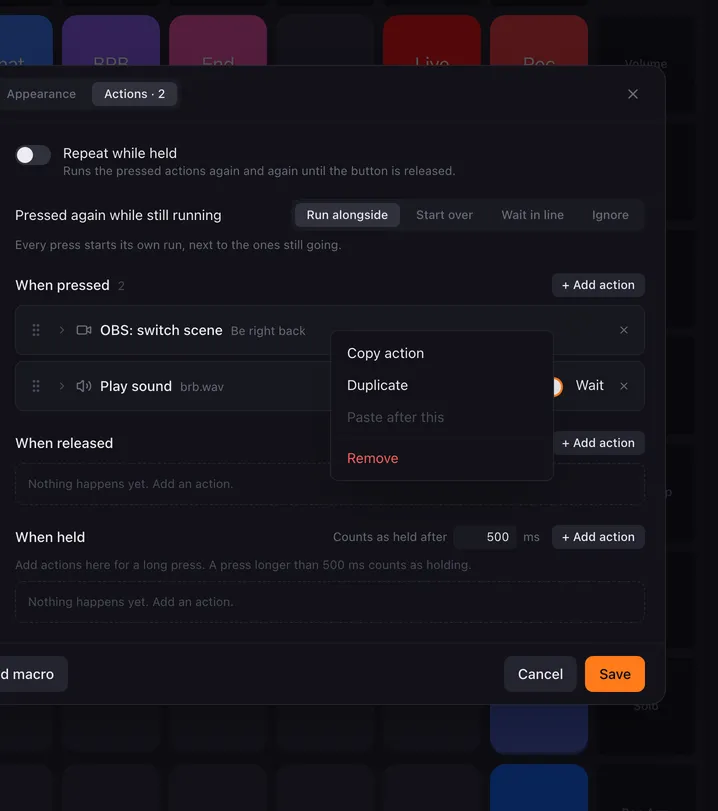
- Copy action puts it on Lunchpad’s own clipboard. On a marker it reads Copy block and takes the whole set with it.
- Paste … after this inserts the copy right below the action you clicked. The + Add action menu offers Paste … copied action at the top, which appends it to the end of the list instead.
- Duplicate is a copy and a paste in one.
The clipboard holds one selection and survives switching buttons, pages and editors, so this is how you move actions from one button to another. It is Lunchpad’s own clipboard, not the system one: Ctrl + C and Ctrl + V do not work here, and it is forgotten when you quit.
Dragging the handle moves an action inside its list, and onto another list of the same editor: drag it over When released or When held and that list lights up. A marker takes its whole block along. To move actions between two different buttons, copy and paste.
Tap or hold
Section titled “Tap or hold”As soon as a button has held actions, a short press and a long press can do different things.
With Pressed actions wait until it is clear this is a tap switched on (the default), the pressed actions wait:
- Let go before the hold time: the pressed actions run. That is a tap.
- Keep holding past the hold time: the held actions run instead, and the pressed actions do not.
Switch it off, and the pressed actions run the moment you press. The held actions come on top once the hold time has passed.
The released actions run on every release, tap or hold.
Order and the Wait switch
Section titled “Order and the Wait switch”Actions in a list run from top to bottom, one after another. Actions that take time (Play sound, Text to speech, Launch application, Hotkey sequence, Mouse sequence, HTTP request, Run script and Run another button) have a Wait switch:
- Wait on (the default): the next action starts after this one has finished.
- Wait off: the next action starts right away, and this one runs alongside.
A list is only done when every action in it has finished, including the ones that did not wait.
Markers
Section titled “Markers”Some actions come as a set of markers that wrap other actions:
- Condition: Condition, Otherwise and End condition.
- Loop: Loop, If it takes too long and End loop.
- Flip flop: Flip flop: A, Flip flop: B and Flip flop: end.
- Push-to-talk: Push-to-talk on and Push-to-talk off.
Markers have a dashed outline. Put the actions they control between them. Markers keep their order among themselves, and removing one marker removes its whole set.
The actions inside a block are indented, so you can see what belongs to it at a glance; Otherwise and the end marker line up with the marker that opened the block, and a block inside a block indents again. It is only a way of drawing the list — dragging a row in or out of a block moves it, and the indentation follows.
A marker with nothing to show folds to a single line: an Otherwise, If it takes too long or Flip flop: B whose branch is empty, and every end marker. While you drag a row they open up to full size so you can drop into them, and fold back afterwards.
Repeat while held
Section titled “Repeat while held”Repeat while held runs the pressed actions again and again for as long as you hold the pad. When you switch it on, Lunchpad adds Stop this macro to the released actions, so letting go ends the loop.
A loop without any delay still gets a tiny pause between rounds, so it cannot freeze your computer. Add a Delay to set the pace yourself.
To repeat only part of a list, a set number of times or until a variable passes a check, use a Loop block instead.
Pressing a button that is still running
Section titled “Pressing a button that is still running”A button whose actions take a while (a long sound, a countdown, a chain with delays) can be pressed again before it has finished. Pressed again while still running, at the top of the Actions tab, says what that press does.

| Choice | A press while the button is still running… |
|---|---|
| Run alongside | starts its own run next to the ones still going. This is the default, and what you want for a sound board where the same sound may overlap. |
| Start over | stops the run in progress and starts the actions from the top. The stopped run ends the way Stop this macro ends it: its sounds stop, its waits end. |
| Wait in line | waits until the run before it has finished, then runs. Presses that can wait (1 to 99, 1 to begin with) is how long the line may get; a press that finds it full is ignored. |
| Ignore | does nothing. The button takes a press again once the run has finished. |
A few things follow from how Lunchpad counts:
- Each list is counted on its own. The released actions still run when you let go while the pressed actions are going, and a tap on a busy button set to Ignore skips the pressed actions but not the released ones.
- A press that waits is a run of the button. The pad stays lit while presses wait, and Stop this macro and Stop all macros clear the line along with the run.
- The choice also holds when another button runs this one with Run another button.
- Repeat while held never finishes by itself, so with Wait in line or Ignore the next press only gets its turn after the repeat has been stopped.
Faders have no such choice: a fader runs its actions once per movement, when the movement comes to rest.
Buttons made before Lunchpad 1.1.2 are set to Run alongside, which is how every button used to behave.
Stopping from inside a list
Section titled “Stopping from inside a list”Two actions do the same job from within the lists, whatever the choice above:
- Restart this macro: the run it is in stops every other run of this button, from any of its lists.
- Stop this macro on another list, for example the released list, ends every run of this button.
To stop everything that is running, right-click any pad and choose Stop all macros, or use the tray menu.
Where to go next
Section titled “Where to go next”- The action reference explains every action and its settings.
- Variables and placeholders shows how actions pass values to each other.