
First launch
Choose your Launchpad
Section titled “Choose your Launchpad”The first time you start Lunchpad, it shows Choose your Launchpad. Lunchpad asks every MIDI device to identify itself, so the list only shows Launchpads it can actually drive.
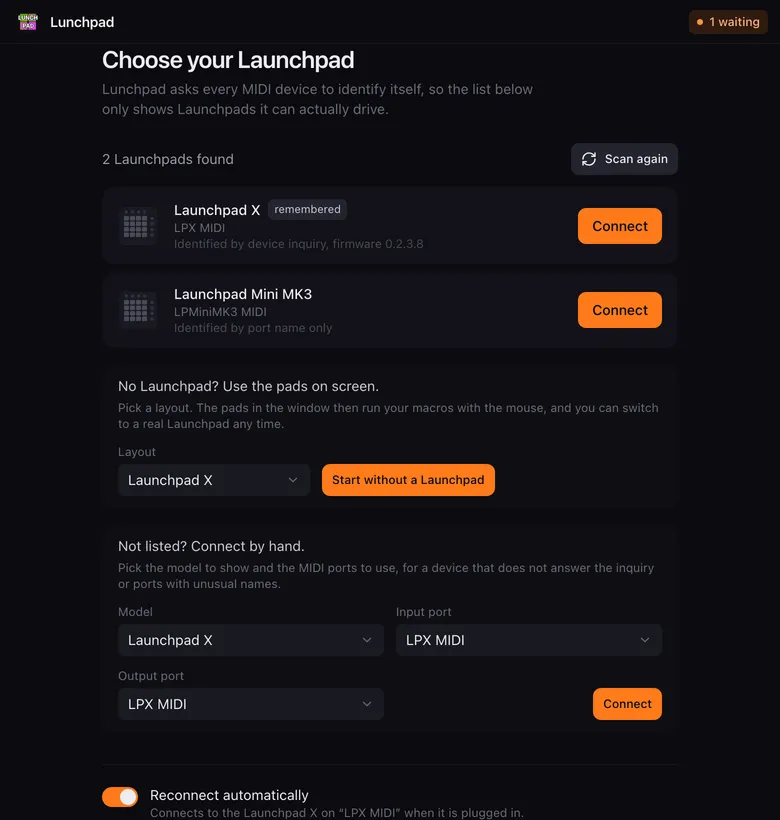
Each entry tells you how the device was recognised:
- Identified by device inquiry: the Launchpad answered the identification request, often with its firmware version. This is the reliable way.
- Identified by port name only: the device did not answer, so Lunchpad went by the name of its MIDI port. The Launchpad S works this way.
Click Connect next to your Launchpad. The pads light up in a sweep and the main window opens with your first page.
If nothing shows up, plug the Launchpad in and wait a moment: the list updates on its own. Scan again looks once more. On Windows, close other apps that may hold the MIDI ports.
No Launchpad? Use the pads on screen
Section titled “No Launchpad? Use the pads on screen”Below the device list, No Launchpad? Use the pads on screen. lets you pick a Layout (any supported model, including the Launchkey keyboards) and click Start without a Launchpad. The pads in the window then run your macros when you click them, and you can switch to a real Launchpad any time.
This is also handy for building pages for a friend’s Launchpad model.
Not listed? Connect by hand
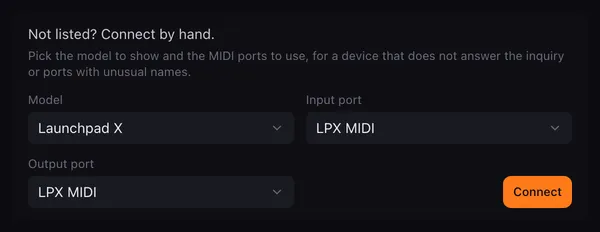
Section titled “Not listed? Connect by hand”Some devices never answer the identification request, and some ports carry a name nothing can guess. For those, the last box of the device list lets you say what to connect to:
-
Pick the Model. This decides which surface Lunchpad draws and which language it speaks to the device; nothing is checked against the hardware, so pick the model you actually have.
-
Pick an Input port and an Output port. Both lists hold every MIDI port on the computer, not only the ones that look like a Launchpad. Lunchpad preselects a remembered port, else the first port whose name contains “launch”.
-
Click Connect.
A device connected this way is remembered like any other, and comes back on the next start. Because it never identified itself, Settings → Launchpad shows its firmware as unknown.
Make your first button
Section titled “Make your first button”-
Right-click an empty pad and choose Add button….
A new button gets a random colour from the palette so you can tell it apart right away.
-
On the Appearance tab, type a Caption, for example
Hello. -
Switch to the Actions tab. Under When pressed, click + Add action and open Media → Text to speech.
-
Type a text to speak, for example
Hello chat. Click Preview to hear it. -
Click Save.
-
Press the pad on your Launchpad (or click it on screen). Lunchpad speaks your text.
That is the whole loop: a button, a list of actions, a press. From here:
- Learn what the main window can do in The main window.
- Style buttons with colours and images in Buttons.
- Understand pressed, released and held actions in Action lists.
- Browse everything a button can do in the action reference.