
Toggle filter
Turn a filter of a source on or off.
- Where
- + Add actionOBS StudioOBS: toggle filter+ Add actionStreamlabsStreamlabs: toggle filter
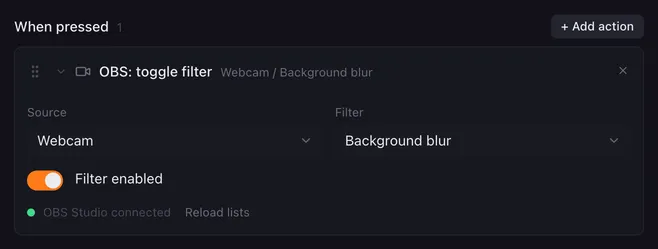
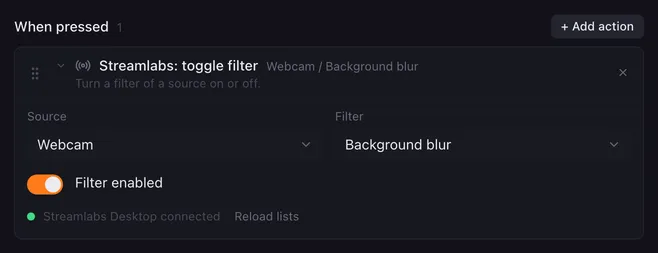
Filters change how a source looks or sounds: a blur, a colour correction, a chroma key, noise suppression, a voice changer. This action switches one of them on or off.
Settings
Section titled “Settings”| Setting | What it does |
|---|---|
| Source | The source that has the filter. In OBS Studio the list also holds your scenes, since scenes can carry filters too. |
| Filter | The filter to change. The list shows the filters of the chosen source; picking another source clears it. |
| Filter enabled | On: the action switches the filter on. Off: it switches it off. |
How it runs
Section titled “How it runs”- Despite its name, the action always sets the state you chose in Filter enabled; it does not flip it. For one pad that alternates, use a Flip flop with this action once on and once off.
{{placeholders}}work in the source and filter names.- Errors (unknown source or filter, app not running) are noted in the log and the macro goes on.
Example
Section titled “Example”A “privacy” pad that blurs the webcam on every other press:
- Flip flop A: Toggle filter
Webcam/Background blur, Filter enabled on. - B: the same action with Filter enabled off.