
Settings
Open the settings with the round gear in the corner of the pad grid. Changes take effect right away; there is no save button. Esc closes the settings.
The tabs are grouped as in the app: General, Integrations, Data and About.
General
Section titled “General”Launchpad
Section titled “Launchpad”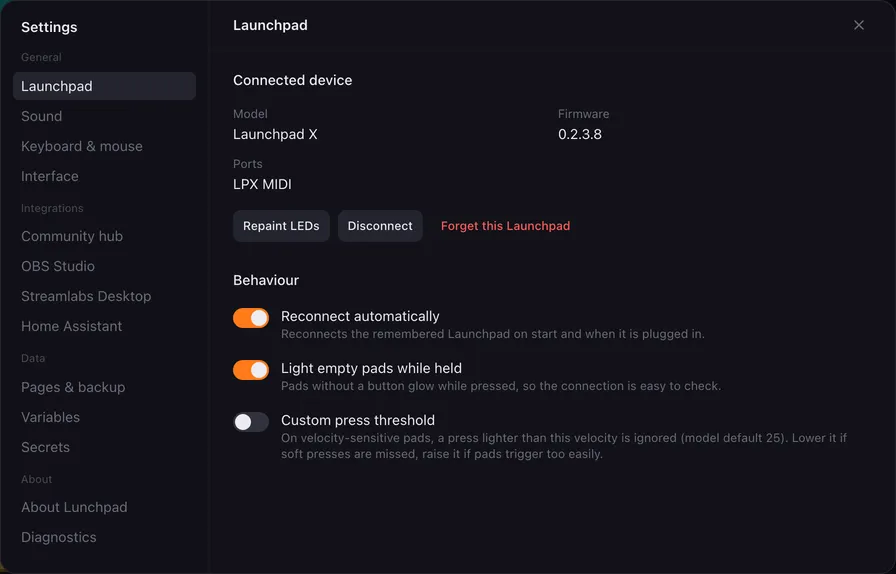
Connected device names the Model, its Firmware and the MIDI Ports it is on. A device you connected by hand never identified itself, so its firmware shows as unknown.
- Repaint LEDs sends every pad’s colour to the device again, in case the LEDs got out of step.
- Disconnect releases the Launchpad and goes back to the device list.
- Forget this Launchpad removes the remembered device, so Lunchpad does not reconnect to it.
Behaviour:
- Reconnect automatically: reconnects the remembered Launchpad on start and when it is plugged in.
- Light empty pads while held: pads without a button glow while pressed, so the connection is easy to check.
- Custom press threshold (velocity-sensitive Launchpads only): a press lighter than this velocity is ignored. The model default is 25. Lower it if soft presses are missed, raise it if pads trigger too easily.
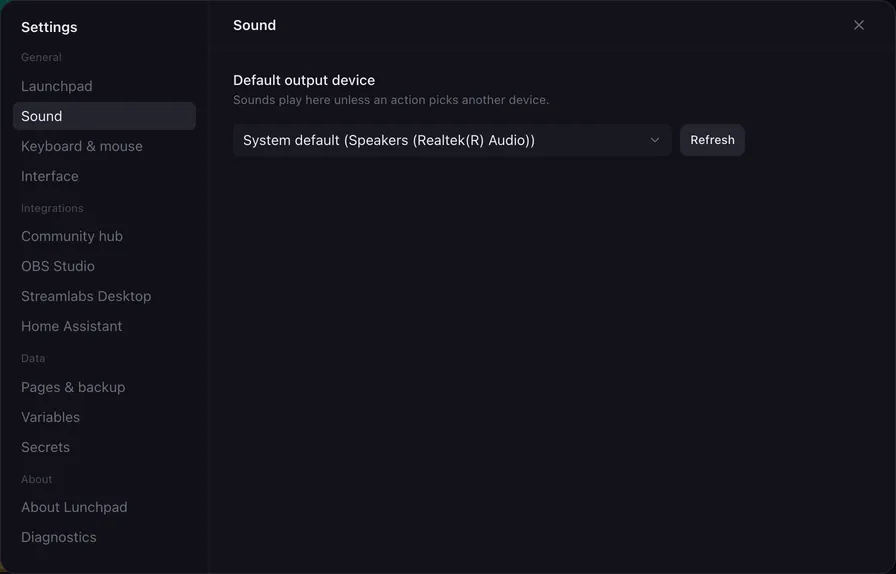
Default output device: where sounds play unless an action picks another device. System default follows your computer’s default device. Refresh reads the device list again after you plugged in headphones or an interface.
Keyboard & mouse
Section titled “Keyboard & mouse”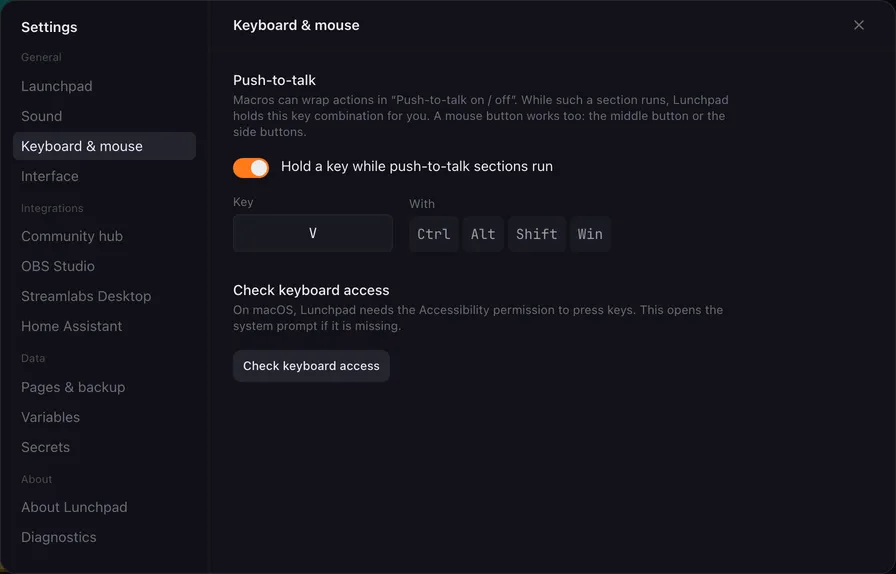
Push-to-talk: macros can wrap actions in Push-to-talk on and Push-to-talk off markers. While such a section runs, Lunchpad holds the key combination you set here, for example your Discord push-to-talk key.
- Hold a key while push-to-talk sections run switches the feature on.
- Key: click and press the key. A mouse button works too: the middle button or the side buttons.
- With: modifier keys to hold along with it.
See Push-to-talk for the action.
Check keyboard access: on macOS, Lunchpad needs the Accessibility permission to press keys. This button opens the system prompt if it is missing.
Interface
Section titled “Interface”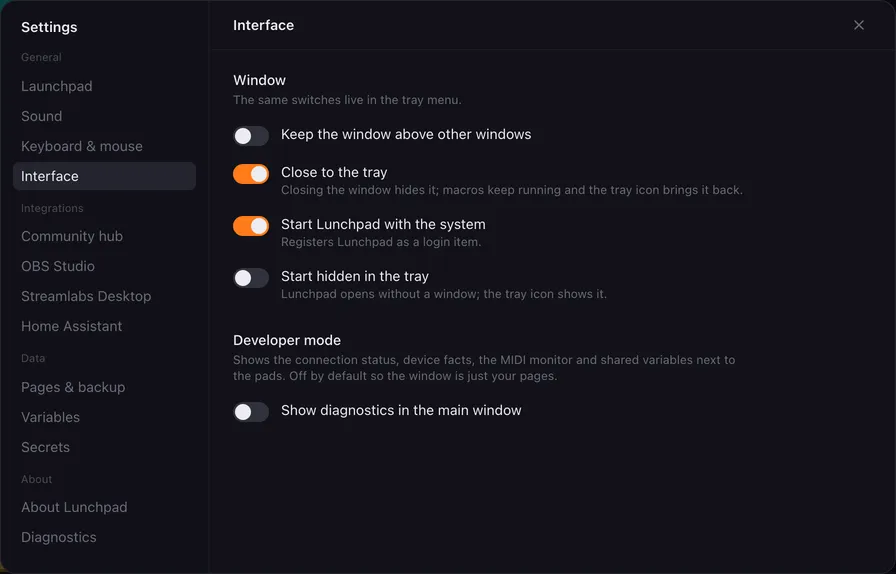
Window (the same switches are in the tray menu):
- Keep the window above other windows.
- Close to the tray: closing the window hides it; macros keep running and the tray icon brings it back.
- Start Lunchpad with the system: registers Lunchpad as a login item.
- Start hidden in the tray: Lunchpad opens without a window; the tray icon shows it.
Developer mode: Show diagnostics in the main window adds the side panel with the connection status, device facts, the MIDI monitor and shared variables. See developer mode.
Integrations
Section titled “Integrations”Community hub
Section titled “Community hub”Signs this copy of Lunchpad in to the community hub, where people publish buttons and pages for each other. Signing in opens your browser; while you are signed out, nothing is sent anywhere.
Once signed in, the tab holds the inbox of things sent to the app, the list of what you have shared from this app, and private configuration backups you can make and restore. See Share on the community hub.
OBS Studio and Streamlabs Desktop
Section titled “OBS Studio and Streamlabs Desktop”Connection settings for the two streaming apps: host, port, password or token, Connect automatically, and the connection status. Set-up is explained in OBS Studio and Streamlabs.
Home Assistant
Section titled “Home Assistant”Connect to Home Assistant, the Home Assistant address, the Long-lived access token, Accept a self-signed certificate, the connection status and Reload entities. Set-up is explained in Home Assistant.
Passwords and tokens of the integrations are not written into the settings file: installed copies keep them in the system’s credential store (the Keychain on macOS, the Credential Manager on Windows).
Pages & backup
Section titled “Pages & backup”Your pages in a list, page import and export, Restore previous profile, and Import from the old Lunchpad. A page that comes from somewhere else is shown to you before it is imported, with what its actions would do. See Pages and backup and Check before importing.
Variables
Section titled “Variables”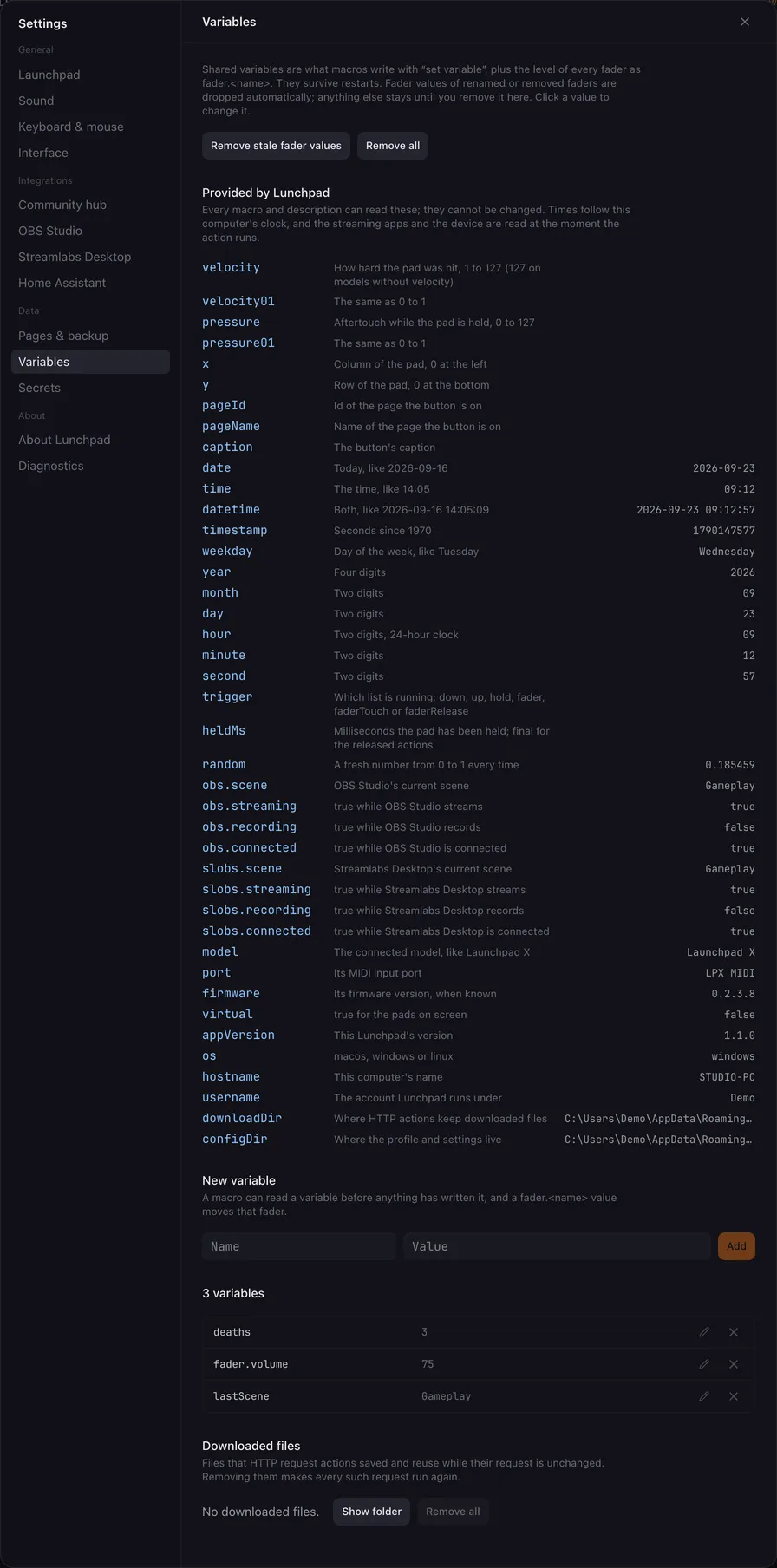
Provided by Lunchpad lists every value Lunchpad gives to macros — the press, the clock, the streaming apps, the device, the computer — with its meaning and its value right now. They cannot be changed.
Below it, every shared variable with its current value: what macros wrote with Set variable or Add to variable, plus the level of every fader as fader.<name>. They survive restarts.
- The ✕ next to a variable removes that one.
- Remove stale fader values drops levels of faders that were renamed or removed.
- Remove all clears the list, after a confirmation.
Downloaded files at the bottom is what HTTP request actions saved and reuse while their request is unchanged: the count and the size, Show folder, and Remove all, which makes every such request run again.
Variables of a running macro (This run) are not listed here; they are gone when the macro ends. See Variables and placeholders.
Secrets
Section titled “Secrets”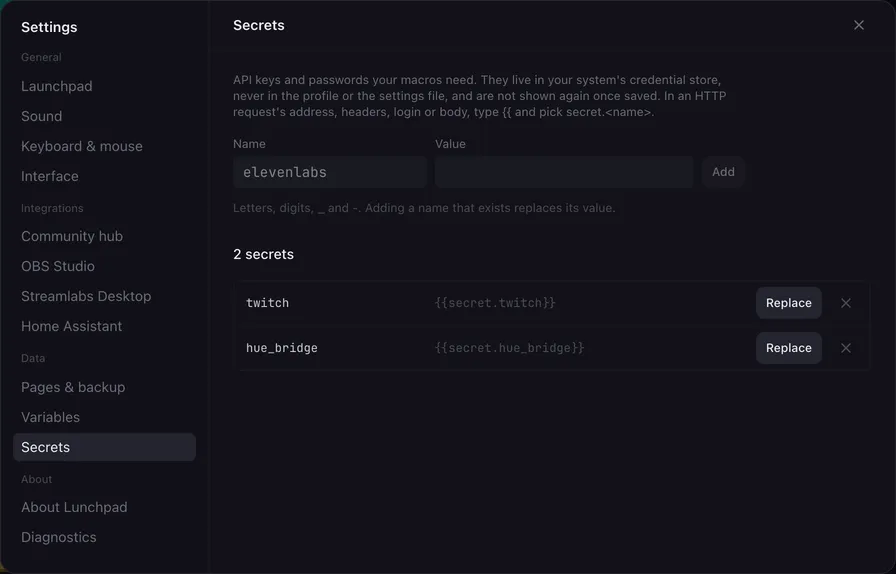
API keys and passwords your macros need, kept in your system’s credential store instead of the profile. Add a name and a value, use it as {{secret.name}}, and replace or remove it here. A value is never shown again once saved. See Secrets.
About Lunchpad
Section titled “About Lunchpad”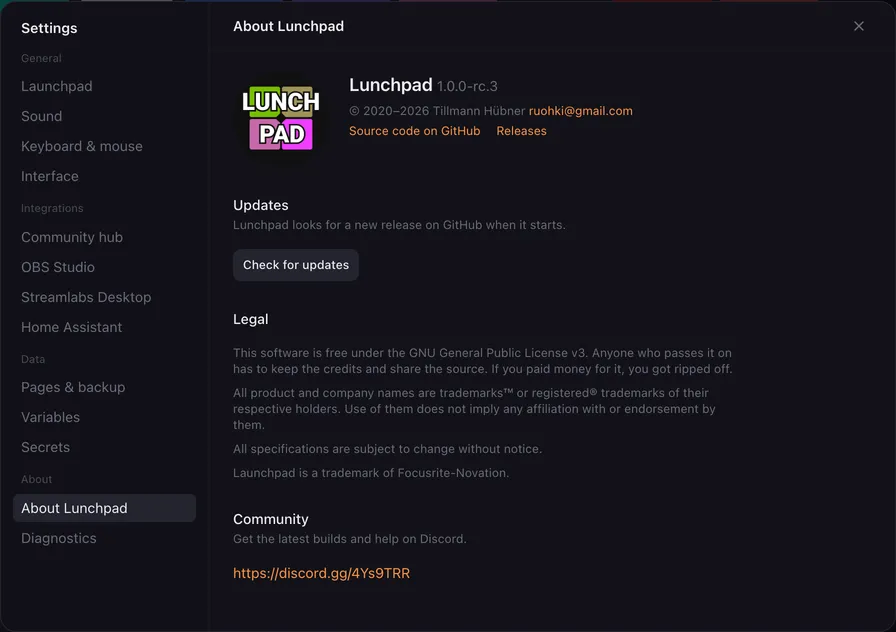
The version you run, links to the source code and the releases, the licence, and the Discord link.
Updates: Lunchpad looks for a new release on GitHub when it starts. Check for updates looks right now. When a new version is available, Install and restart downloads and installs it. See Tray and updates.
Diagnostics
Section titled “Diagnostics”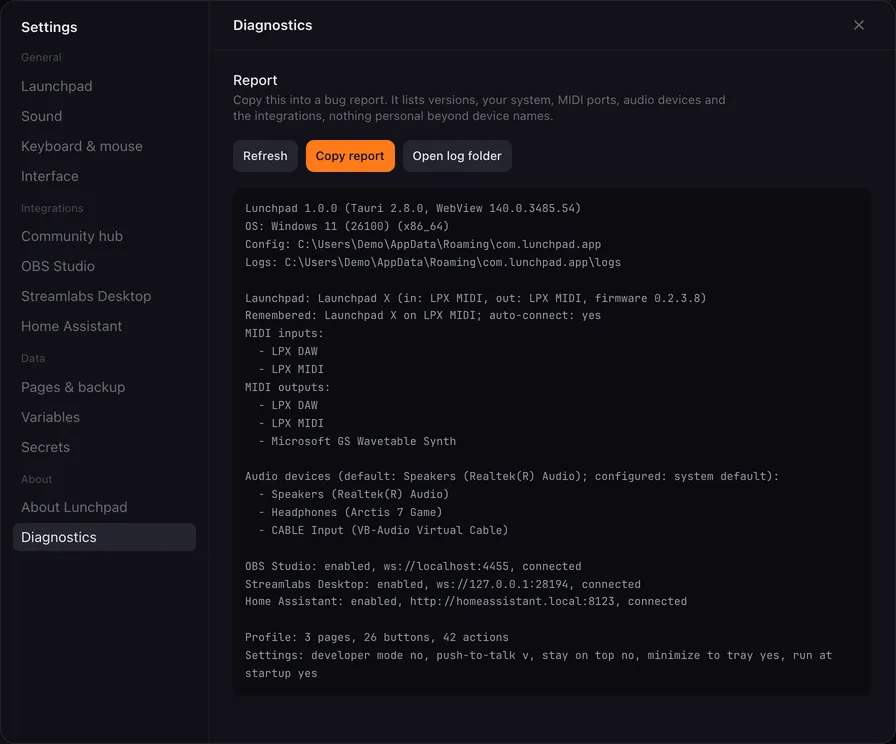
A Report to copy into a bug report. It lists versions, your system, MIDI ports, audio devices and the integrations, nothing personal beyond device names.
- Refresh collects the report again.
- Copy report puts it on the clipboard.
- Open log folder shows the log files, which help when something goes wrong.