
Launch application
Start a program or script.
- Where
- + Add actionSystemLaunch application
- Wait
- Has a Wait switch: on, the next action starts once this one is done
Launch application starts a program, the same way you would from a terminal. Open your streaming tools with one press, run a script that talks to your smart lights, or call a command-line tool and use its answer in the next actions.
Settings
Section titled “Settings”| Setting | What it does |
|---|---|
| Program or script | The path of the program, or the name of a program on the PATH, such as powershell.exe or python. On macOS an app works too: /Applications/Spotify.app, or just Spotify. Choose… opens a file picker. |
| Arguments | Passed to the program. They are split like in a shell: quotes keep words with spaces together, as in -File "C:\My Scripts\lights.ps1". |
| Stop the program when the macro stops | On: stopping the macro closes the program (on macOS its child processes too; an app is asked to quit the way the Dock would), and the macro counts as running for as long as the program does. Off: the program keeps running on its own and the macro does not wait for it. |
| Start without a window | Windows: starts console programs and scripts without opening a console window. macOS: starts an app hidden and in the background. |
| Save output to variable | Stores what the program prints (its standard output) in this variable once it exits. Trailing spaces and line breaks are trimmed. |
| Scope | This run keeps the variable to this macro, Everywhere shares it with all macros. See variables. |
How it runs
Section titled “How it runs”- Lunchpad starts the program directly, not through a shell. Pipes, redirects,
&&and variables like%APPDATA%do not work in the fields. Run a shell when you need them:cmd.exewith/c ...,powershell.exewith-Command ..., or/bin/shwith-c "..."on macOS. - With Wait on, the macro waits until the program exits. With Wait off, the program is started and left alone: the next actions start straight away and the macro ends without it. Only Stop the program when the macro stops or Save output to variable keep the macro running while the program runs.
{{placeholders}}work in Program or script and Arguments, for example to pass{{velocity}}to a script.- Only standard output is saved, not error output, and only once the program exits. Keep Wait on so the next actions can read the variable. If the macro is stopped before the program exits, the variable is not set.
- A program that cannot be started (wrong path, no permission) is noted in the log and the macro goes on.
Example
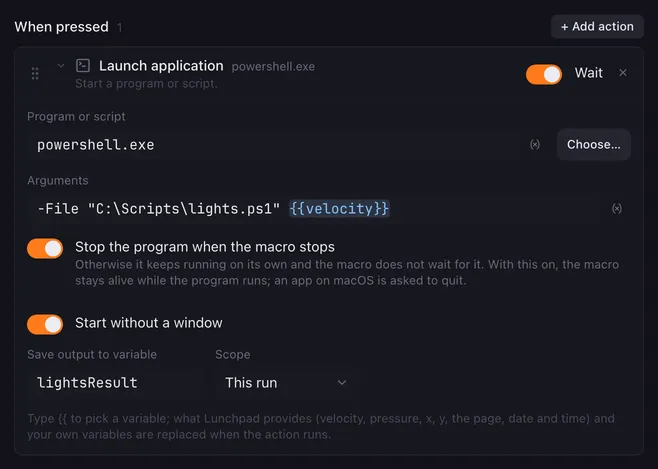
Section titled “Example”Dim your room lights with how hard you hit the pad (on a velocity-sensitive Launchpad):
- Program or script:
powershell.exe - Arguments:
-File "C:\Scripts\lights.ps1" {{velocity}} - Start without a window: on
- Save output to variable:
lightsResult, so a following Condition can check what the script reported.
Related
Section titled “Related”- HTTP request — talk to a web service without a script
- Run script — process the saved output
- Stop this macro — close a program started with Stop the program when the macro stops