
Switch audio device
Make a device the system default, so all sound plays (or records) through it.
- Where
- + Add actionMediaSwitch audio device
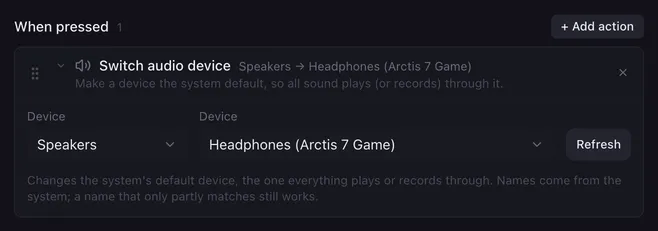
Switch audio device changes which device your computer uses by default for playback or recording. Flip between headphones and speakers, or between two microphones, without opening the sound settings.
Settings
Section titled “Settings”| Setting | What it does |
|---|---|
| Device (left) | Speakers switches the default output, Microphone the default input. Changing it clears the device next to it. |
| Device (right) | The device to make the default, as the system names it. A saved device that is not connected right now shows as “(not found)”. |
| Refresh | Reads the device list again, for example after plugging in a headset. |
How it runs
Section titled “How it runs”- The action has no Wait switch; it takes effect right away.
- The name is matched exactly first, then ignoring upper and lower case, then as part of a longer name. A device whose name gains a prefix after reconnecting (Windows likes “2- Headphones”) is still found.
- On Windows the device becomes the default for everything: the default device and the default communication device.
- Programs that use the default device follow the switch. Programs where you picked a specific device in their own settings keep using that device.
- If no device matches, nothing changes and the reason goes to the log.
Example
Section titled “Example”One pad that toggles between headphones and speakers, using a flip flop:
- Flip flop: A → Switch audio device: Speakers, your headphones.
- Flip flop: B → Switch audio device: Speakers, your speakers.
- Flip flop: end.
Add a Set colour to each side so the pad shows which one is active.
Related
Section titled “Related”- System audio — volume and mute of the default device
- Play sound — pick a device per sound instead