
Switch scene
Make a scene live, optionally in another scene collection.
- Where
- + Add actionOBS StudioOBS: switch scene+ Add actionStreamlabsStreamlabs: switch scene
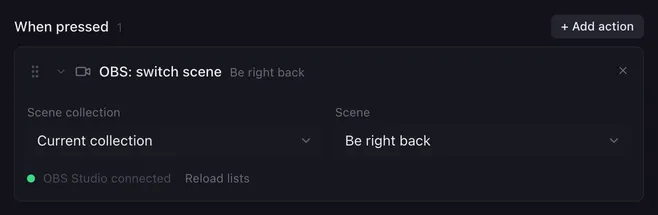
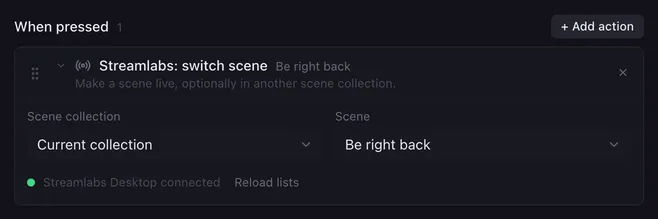
Switch scene is the classic stream deck button: one pad per scene, and the live scene changes the moment you press it.
Settings
Section titled “Settings”| Setting | What it does |
|---|---|
| Scene collection | Current collection, or a collection to load first. |
| Scene | The scene to make live. |
While Lunchpad is connected, both fields list what the app has; Reload lists fetches them again. While it is not connected, the fields become text boxes and you type the names exactly as they are in the app. A saved name the app does not have shows as, for example, Gameplay (not in OBS Studio).
How it runs
Section titled “How it runs”- With a scene collection set, Lunchpad loads that collection first (if it is not the current one), gives the app a moment to load its scenes, then switches the scene.
{{placeholders}}work in both names, so a scene can come from a variable:{{lastScene}}.- Lunchpad waits for the app to answer before the next action starts.
- If the app is not running or does not know the scene, the problem is noted in the log and the macro goes on.
- In OBS, the action sets the program (live) scene directly, also while studio mode is on.
Example
Section titled “Example”A “Be right back” button:
- Switch scene
Be right back. - Set audio
Mic/Aux, Mute. - Play sound with a short jingle.
Related
Section titled “Related”- Show or hide source
- Studio mode — preview first, then transition
- Set variable — remember the last scene