
Variables and placeholders
Variables let actions pass values to each other. One action stores a value, a later action uses it. Every macro also gets a long list of values from Lunchpad itself: how hard you hit the pad, the time, what OBS is doing, which device is connected.
Placeholders
Section titled “Placeholders”Write a variable’s name in double curly braces, like {{velocity}}, in a text field of an action. When the action runs, Lunchpad replaces it with the variable’s current value.
Placeholders work in the text of Text to speech, the program and arguments of Launch application, typed text in a Hotkey sequence, the URL, headers, body, login and file names of an HTTP request, the value of Set variable, the amount of Add to variable, the value of a Condition, the value of Set fader, the coordinates and amounts of a Mouse sequence, the title, program, position, size and screen of Get window and Set window, the number of Get screen, the title and text of a Debug window, the scene, source, filter and hotkey names of the OBS and Streamlabs actions, and the entity, service and data of the Home Assistant actions.
Type {{ in such a field and Lunchpad offers what it knows: the values it provides, the variables this button writes, the shared variables, the fader levels and your secrets. Names Lunchpad provides are shown in blue, your own in the orange accent colour — in the completion list, and in the field itself once written.
Provided by Lunchpad
Section titled “Provided by Lunchpad”Every macro — and every button description — can read these. They cannot be changed.
The press and the button. Read again for every action, so they are always the press that started this run:
| Placeholder | Value |
|---|---|
{{velocity}} |
How hard the pad was hit, 1 to 127. Models without velocity always report 127. |
{{velocity01}} |
The same as a number from 0 to 1, for example 0.504. |
{{pressure}} |
The pressure (aftertouch) on the pad while you hold it, 0 to 127. |
{{pressure01}} |
The same as a number from 0 to 1. |
{{x}}, {{y}} |
The column and row of the pad, counted from 0 at the left and 0 at the bottom. |
{{pageId}}, {{pageName}} |
The id and the name of the page the button is on. |
{{caption}} |
The button’s caption. Empty for an image button. |
The clock, from this computer, at the moment the action runs:
| Placeholder | Value |
|---|---|
{{date}} |
Today, like 2026-09-16. |
{{time}} |
The time, like 14:05. |
{{datetime}} |
Both, like 2026-09-16 14:05:09. |
{{timestamp}} |
Seconds since 1970. |
{{weekday}} |
The day of the week, like Tuesday. |
{{year}}, {{month}}, {{day}} |
Four digits, and two digits each. |
{{hour}}, {{minute}}, {{second}} |
Two digits each; the hour on a 24-hour clock. |
The run:
| Placeholder | Value |
|---|---|
{{trigger}} |
Which list is running: down, up, hold, fader, faderTouch or faderRelease. |
{{heldMs}} |
How long the pad has been held, in milliseconds. In the released actions it is the final length of the press. |
{{random}} |
A fresh number from 0 to 1, every time it is used. |
OBS Studio and Streamlabs Desktop, read when the action runs. Empty while the integration is off or not connected:
| Placeholder | Value |
|---|---|
{{obs.scene}}, {{slobs.scene}} |
The current scene. |
{{obs.streaming}}, {{slobs.streaming}} |
true while you are live. |
{{obs.recording}}, {{slobs.recording}} |
true while a recording runs. |
{{obs.connected}}, {{slobs.connected}} |
true while Lunchpad is connected to the app. |
The device and the computer. The device values are empty when nothing is connected; the rest never change while Lunchpad runs:
| Placeholder | Value |
|---|---|
{{model}} |
The connected model, like Launchpad X. |
{{port}} |
Its MIDI input port. |
{{firmware}} |
Its firmware version, when known. |
{{virtual}} |
true for the pads on screen. |
{{appVersion}} |
The version of Lunchpad. |
{{os}} |
macos, windows or linux. |
{{hostname}}, {{username}} |
The computer’s name, and the account Lunchpad runs under. |
{{downloadDir}} |
Where HTTP request keeps downloaded files. |
{{configDir}} |
Where the profile and the settings live. |
A button started by Run another button gets the velocity of the original press.
Your own variables
Section titled “Your own variables”These actions store values:
- Set variable sets a variable to a text or a placeholder.
- Add to variable adds a number, for counters.
- HTTP request saves the answer, and three more names alongside it:
.status,.fileand.cached. - Launch application can save the program’s output.
- Run script can save its result, and can change variables directly.
- Get window remembers a window as a JSON object, with
.handle,.title,.app,.x,.y,.width,.height,.screenand.minimizedalongside it. - Get screen remembers a display as a JSON object, with
.number,.x,.y,.width,.height,.scale,.dpi,.primaryand.countalongside it. - Get mouse position stores the pointer as
x,y, with.xand.yalongside.
Condition reads a variable and runs different actions depending on its value.
Scope: this run or everywhere
Section titled “Scope: this run or everywhere”When you store a variable, you choose its Scope:
| Scope | Who sees it | How long it lives |
|---|---|---|
| This run | Only this macro, and the buttons it runs with Run another button. | Until the macro ends. |
| Everywhere | Every macro on every page. | Across restarts: Lunchpad saves shared variables and loads them again when it starts. |
If a variable exists in both scopes, the This run value wins. A name Lunchpad provides always wins over both.
Faders as variables
Section titled “Faders as variables”Every fader keeps its level in a shared variable named fader. followed by its Variable name, for example {{fader.volume}}. Any macro can read it. The Variable name defaults to the fader’s name with spaces as underscores; a fader without a name is published under its id instead.
Writing to that variable with the scope Everywhere moves the fader: Set variable fader.volume to 50, or Add to variable fader.volume with -5, and the fader’s pads and actions follow. With This run the value stays a variable of that macro and the fader does not move.
While a fader runs its own actions, it also provides value, percent, fraction, step, steps and display. See Faders.
Keys and passwords
Section titled “Keys and passwords”An API key is not a variable: put it in Settings → Secrets and write {{secret.name}}. Secrets live in your system’s credential store, never in the profile, and are never listed with the variables. See Secrets.
The list in the settings
Section titled “The list in the settings”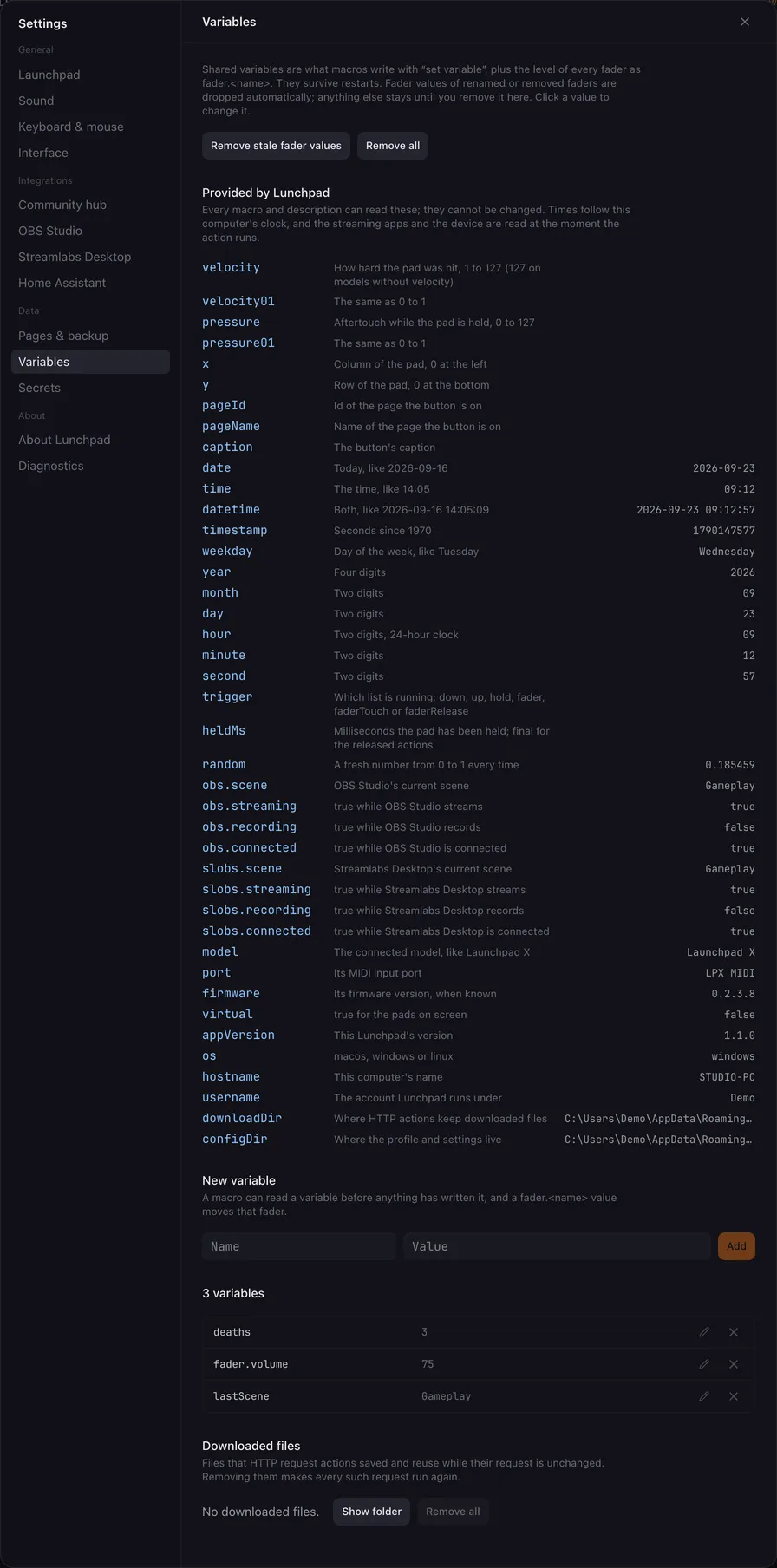
Settings → Variables has four parts:
- Provided by Lunchpad: every name above with its meaning and its value right now. The clock ticks while the tab is open.
- New variable: a name and a value, for a macro to read before anything has written it. Names Lunchpad provides, names that exist already and names that cannot be a placeholder (spaces, braces) are refused with a hint.
- The shared variables, with their values. Click a value (or its pencil) to change it: Enter or leaving the field keeps the change, Esc drops it. Setting a
fader.<name>value moves that fader without running its actions. The ✕ removes one, Remove stale fader values drops levels of faders that were renamed or removed, and Remove all clears the list. - Downloaded files: what HTTP request actions saved and reuse. Show folder opens it, Remove all empties it — and every such request then runs again.
Variables of a running macro (This run) are not listed; they are gone when the macro ends. The same shared list is in the side panel of developer mode.
Numbers from variables
Section titled “Numbers from variables”Volume actions have a From variable field instead of a placeholder. Enter just the name (for example value or fader.volume), or a placeholder. When the variable holds a number, it replaces the slider. When it does not, the slider’s value is used.