
Show or hide source
Show or hide a source in a scene.
- Where
- + Add actionOBS StudioOBS: show or hide source+ Add actionStreamlabsStreamlabs: show or hide source
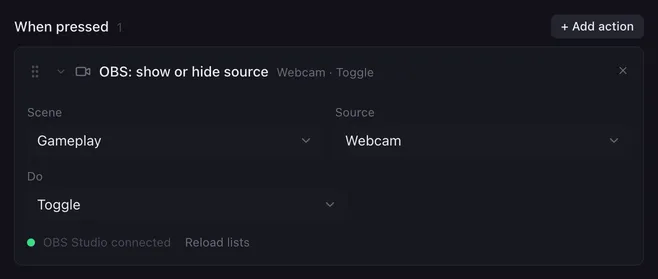
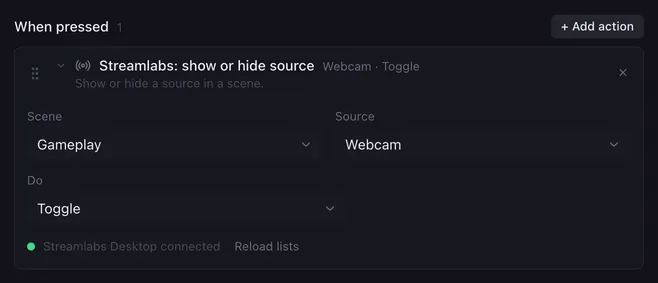
Show or hide source switches a single element of a scene: the webcam, an overlay, an alert box, a “starting soon” timer. Use Toggle for one pad that flips it on and off.
Settings
Section titled “Settings”| Setting | What it does |
|---|---|
| Scene | The scene that contains the source. |
| Source | The source to show or hide. |
| Do | Show, Hide or Toggle (flip between the two). |
While the app is not connected, type the names exactly as they appear in the app.
How it runs
Section titled “How it runs”- The action changes every copy of the source in that scene. With Toggle, each copy flips from its current state.
- It works on the current scene collection.
{{placeholders}}work in the scene and source names.- If the source is not in the scene, nothing changes: Streamlabs Desktop reports it in the log, OBS Studio does nothing.
- Errors are noted in the log and the macro goes on.
Related
Section titled “Related”- Switch scene
- Toggle filter — change how a source looks instead
- Flip flop — do more than one thing on alternate presses