
Play sound
Play an audio file.
- Where
- + Add actionMediaPlay sound
- Wait
- Has a Wait switch: on, the next action starts once this one is done
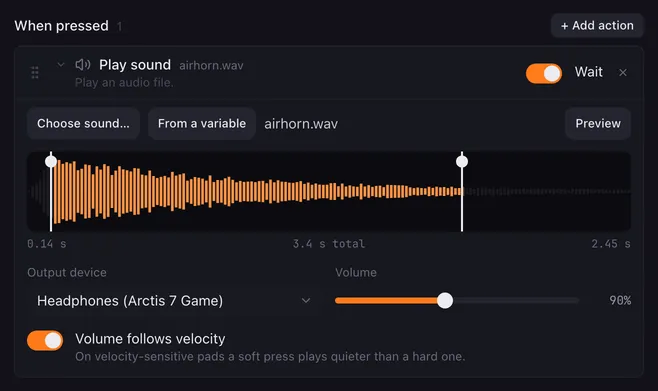
Play sound plays an audio file from your computer: an airhorn, a drum roll, a clip of your own voice. Each action has its own output device and volume, and the waveform editor cuts the sound down to the part you want without touching the file.
Sounds overlap. Press three sound buttons in a row and you hear all three at once, even when they play on different devices. Press one sound button three times and it plays three times over, unless you set the button to start over, wait in line or ignore the press: see Pressing a button that is still running.
Settings
Section titled “Settings”| Setting | What it does |
|---|---|
| Choose sound… | Picks the file. Lunchpad plays MP3, WAV, FLAC, OGG/OGA, M4A, AAC and AIFF. The file stays where it is; the button remembers its path. Hover the file name to see the full path. |
| From a variable | Plays the file a variable names, instead of one you picked — for example {{tts.file}}, the file an HTTP request saved. The waveform and Preview are off, because the file is only known when the macro runs. |
| Preview | Plays the trimmed part on the chosen device at the chosen volume. Click Stop to cut it short. |
| Waveform | Drag the two handles to choose where the sound starts and ends. The numbers below show the start, the full length and the end in seconds. Choosing another file resets the trim. |
| Output device | Where the sound plays. Default from settings uses the device picked under Settings → Sound, which is the system default unless you changed it. A device that is not connected shows as “(not found)”; the sound then plays on the default device. |
| Volume | 0 to 200 %. Above 100 % the sound gets louder than the file and may distort. |
| Volume follows velocity | Only shown when the connected device is velocity sensitive — the Launchpad X, Pro MK2 and Pro MK3, and both Launchkey Minis. The volume is scaled by how hard you hit the pad: a full-force press plays at the set volume, a soft one quieter. |
How it runs
Section titled “How it runs”- With Wait on, the next action starts when the sound (the trimmed part) has finished. Switch Wait off to let the following actions run while the sound plays.
- Stopping the macro stops its sound at once, whether by a Stop this macro or Stop all macros action, Stop all macros in the right-click menu of a pad, or Stop all running macros in the tray menu.
- The file path is used exactly as saved. Placeholders are not replaced in it.
- If the file is missing or cannot be read, the action is skipped, the reason goes to the log and the macro goes on. A pad whose sound file is gone shows a small dot, and a notice lists the missing files. Open the button and choose the file again.
Example
Section titled “Example”A sound that plays only while you hold the pad:
- When pressed: Play sound with your file.
- When released: Stop this macro.
Releasing the pad stops the sound wherever it is.
Related
Section titled “Related”- Stop all sounds — silence every sound at once
- Push-to-talk — play a sound into voice chat
- Action lists — the Wait switch, Repeat while held and held actions
- Settings — the default output device