
The main window
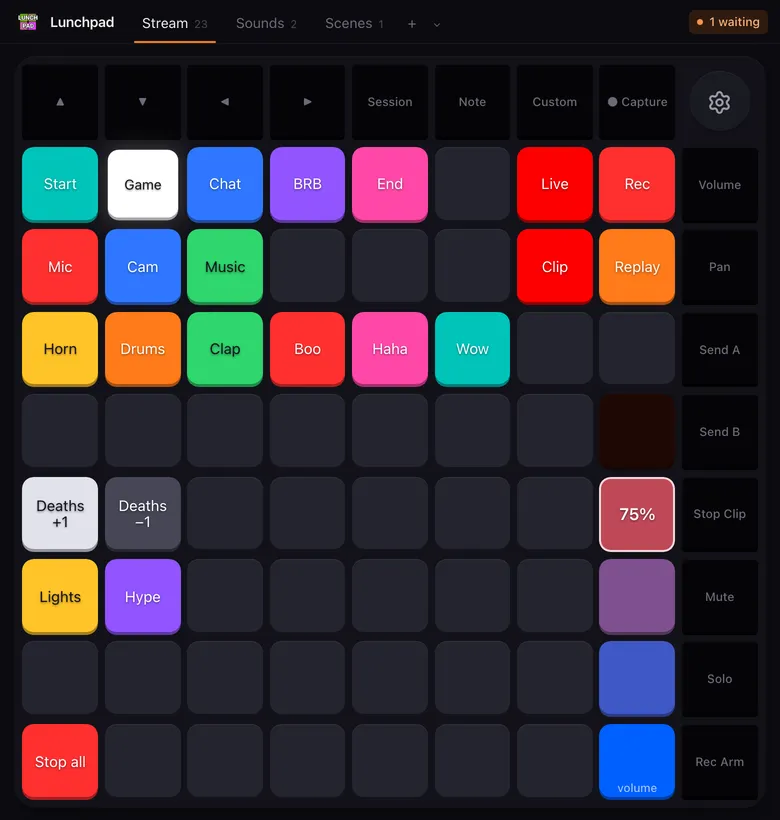
The main window is a picture of your Launchpad. Every pad on screen is a pad on the device, and what you do in one shows up in the other.
The header
Section titled “The header”The strip at the top holds the app name and the page tabs.
- Click a tab to switch to that page. The Launchpad repaints right away.
- The small number next to a page name is how many buttons it has.
- Double-click a tab to rename it.
- Right-click a tab for Rename, Duplicate, Move left, Move right and Remove page. The first page cannot be removed.
- + adds a page. With more than one page, the arrow next to it lists every page, which helps when the tabs do not fit.
More about pages in Pages and backup.
- Click a pad to press it, just like pressing it on the Launchpad. Buttons run their actions; the physical pad lights up while you hold the mouse button.
- A pad with a running macro shows a pulsing outline.
- Hover a pad to read its description, if it has one — your own note about what the button does, with the current value of any variable it mentions.
- A small yellow dot in the corner means a sound file this button plays is missing.
- The round gear in the corner of the grid opens the settings.
The right-click menu
Section titled “The right-click menu”Right-click a pad to edit it.
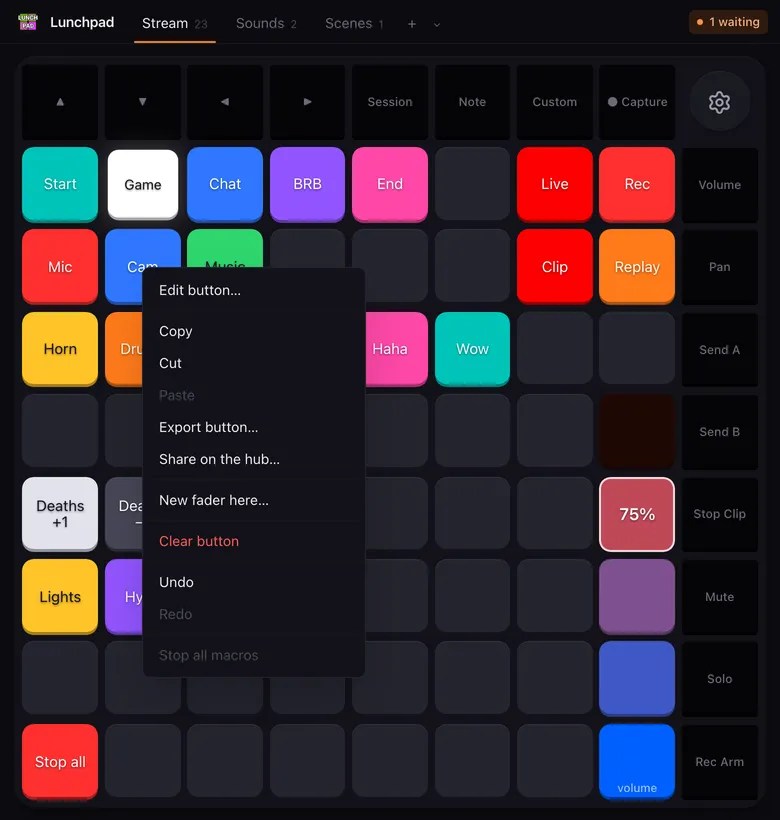
| Entry | What it does |
|---|---|
| Edit button… / Add button… | Opens the button editor. |
| Copy, Cut, Paste | Copy a button, including all its actions, and paste it on another pad or another page. |
| New fader here… | Starts a fader at this pad. |
| Export button… | Saves this one button as a file, to keep or to pass on. |
| Import button… | Puts the button from such a file on this pad, replacing what is there, after the same review a page import gets. |
| Share on the hub… | Publishes this button on the community hub. Once shared from this pad, Update on the hub… appears beside it. |
| Clear button | Removes the button from the pad. |
| Undo, Redo | Step back and forward through your changes to the pages. |
| Stop all macros | Stops everything that is running. Shows how many macros are running. |
| Buttons out of sight… | Only when this page has buttons the connected Launchpad has no pad for. Opens the list below. |
On a fader, the menu offers Edit fader… and Remove fader instead. On a knob or a touch strip of a Launchkey it offers Assign a fader…, because those carry a value rather than a button.
Buttons out of sight
Section titled “Buttons out of sight”Pages keep their buttons by position. Connect a Launchpad with a smaller grid and the buttons without a pad are kept, but there is nowhere to show them. Out of sight lists them, and you drag each one onto a free pad of the grid, exactly like moving a button inside the grid.
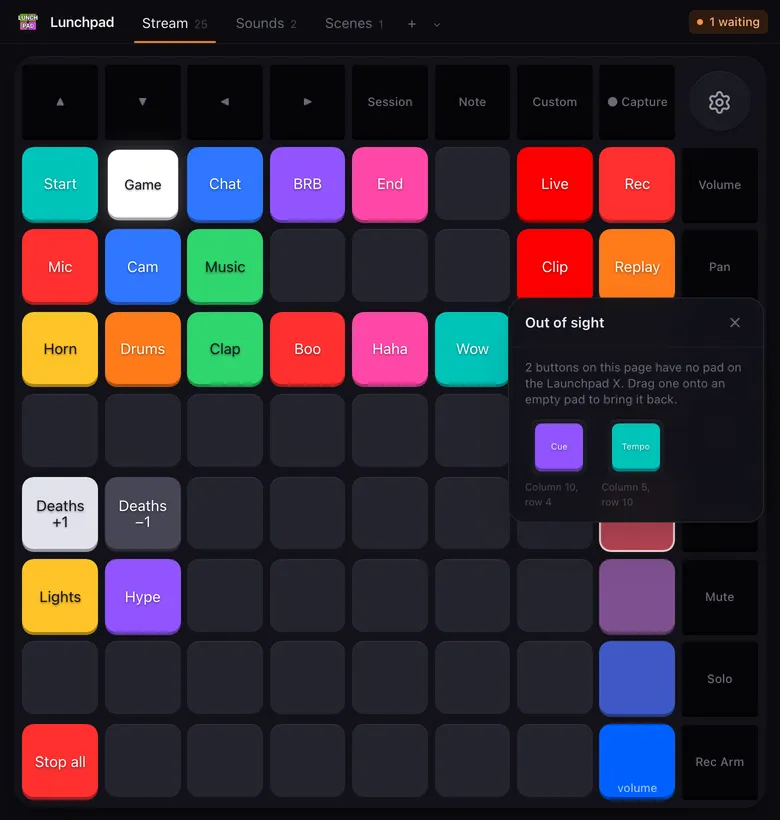
Open it from the notice (Show them) or from the right-click menu of any pad. The panel closes itself once the last button has a pad. See using pages on another model.
Move and copy with the mouse
Section titled “Move and copy with the mouse”Ctrl (⌘ on macOS) and drag a button to move it to another pad. Drop it on a pad that already has a button, and the two swap places.
Shift and drag to copy a button. Dropping a copy on a pad that already has a button replaces that button. Alt works for copying too.
Faders move the same way: Ctrl or ⌘ and drag any of their pads. A fader only lands where every one of its pads is free.
Press Esc during a drag to cancel it.
Ctrl or ⌘ and double-click a pad to open its editor directly.
Undo and redo
Section titled “Undo and redo”Removing a page, clearing a button or removing a fader shows a short notice with Undo. The keyboard works too:
- Undo: Ctrl + Z (⌘ + Z on macOS)
- Redo: Ctrl + Y or Ctrl + Shift + Z (⇧ + ⌘ + Z on macOS)
The shortcuts do nothing while an editor is open or while you type in a text field.
Stopping macros
Section titled “Stopping macros”A macro that loops or waits for a long time keeps running until it ends or you stop it. To stop everything at once:
- right-click any pad and choose Stop all macros, or
- use Stop all running macros in the tray menu, or
- give a button the Stop all macros action.
Developer mode
Section titled “Developer mode”Settings → Interface → Show diagnostics in the main window adds a side panel next to the pads. It is off by default so the window is just your pages.
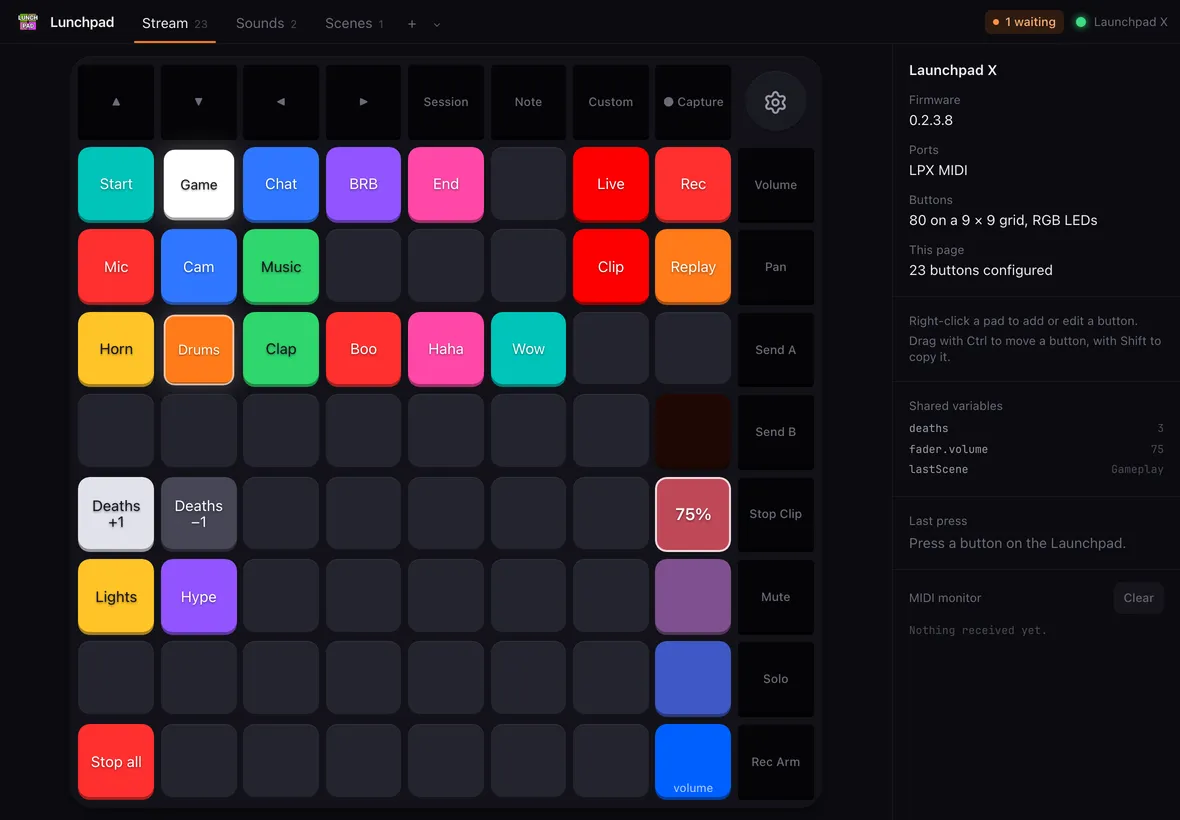
The panel shows:
- the connected model, its firmware and MIDI ports,
- how many pads the device has and whether it has RGB or red and green LEDs,
- your Shared variables and their current values,
- Last press: the last pad you pressed, with its MIDI note, velocity and pressure,
- the MIDI monitor, a live list of the messages the Launchpad sends.
The header also shows the connection status while developer mode is on.