
Secrets
Macros often need a key: a token for a web API, the password of a smart-home bridge, an API key for a voice service. Typing it into an HTTP request works, but then it sits in your profile — and a profile is what you export, back up and send to a friend.
Secrets keep those values somewhere else. You give a value a name once, and your macros use the name.
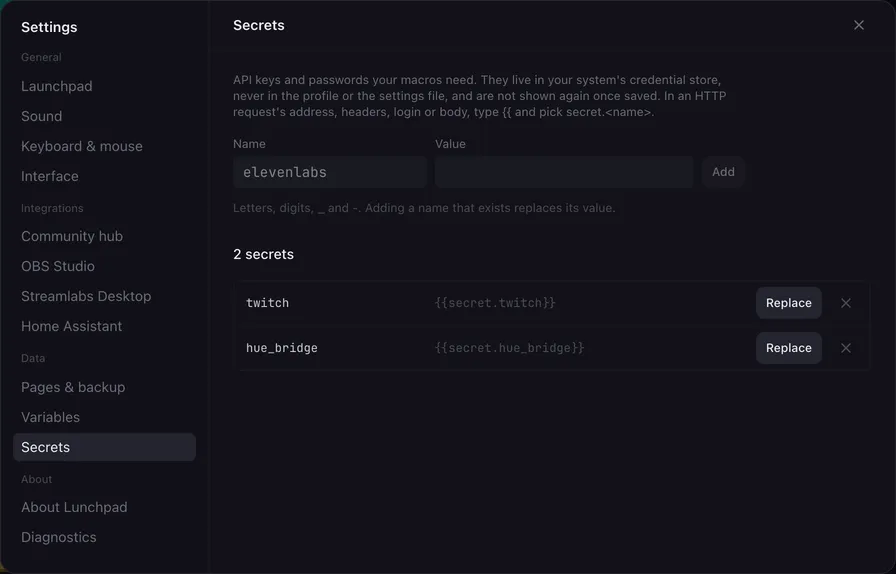
Where they are kept
Section titled “Where they are kept”In your operating system’s credential store: the Keychain on macOS, the Credential Manager on Windows, the Secret Service on Linux. Lunchpad’s settings file holds only the names, and the profile holds nothing at all.
A value is never shown again once saved, not in the app and not in the diagnostics report.
Add a secret
Section titled “Add a secret”-
Open Settings → Secrets.
-
Type a Name: letters, digits,
_and-, up to 64 characters. This is what you write in your macros, so keep it short —twitch,hue_bridge,elevenlabs. -
Paste the Value and click Add.
Adding a name that already exists replaces its value. Replace on a row does the same for that one, and the ✕ deletes it.
Use one in a macro
Section titled “Use one in a macro”Write {{secret. and the name, for example {{secret.twitch}}. The row in the settings shows the exact placeholder to copy. In any text field of an action, typing {{ offers your secrets along with the variables.
Secrets work everywhere Lunchpad fills in values, which is every field that takes a {{placeholder}}:
- an HTTP request: the address, header values, the body, the bearer token, the user name and password of a login, and file paths,
- the text of Text to speech, the arguments of Launch application, typed text in a Hotkey sequence,
- the entity, service and data of the Home Assistant actions, and the scene, source, filter and hotkey names of the OBS and Streamlabs actions,
- the title and text of a Debug window, which then shows the value on screen, so keep secrets out of it.
What secrets are not
Section titled “What secrets are not”- They are not variables. They never appear in Settings → Variables, a script cannot read them through
varsorglobals, and nothing writes them to disk outside the credential store. - They are not shown in descriptions.
{{secret.…}}in a button description stays as written. - They are not logged. The log names the address as you typed it, so a key in a query string does not end up in a log file.
Deleting a secret leaves the text {{secret.name}} in your actions; they then send it literally, so clean the actions up as well.
Sharing and backups
Section titled “Sharing and backups”A secret never leaves your computer, so a page you share or back up carries only the {{secret.name}} reference. Whoever installs it needs a secret of that name of their own.
That is exactly why a key belongs in a secret rather than in the action. A password typed straight into an HTTP request is part of the button: share that button, and the password goes with it.
A page from someone else
Section titled “A page from someone else”A secret is filled in by name, from the credential store of whoever presses the pad. So a page made by someone else can name a secret you have — and send its value wherever that action points, without ever having seen the value.
Lunchpad shows you any such action before a page is imported, under Needs a close look, together with the destination it would go to. See Check before importing.