
Launchkey keyboards
A Launchkey is a keyboard, not a Launchpad, and Lunchpad drives it as one: the pads and the buttons around them take buttons like any grid, the keys can trigger macros, and the knobs and touch strips drive faders.
Two models are supported: the Launchkey Mini MK3 and the Launchkey Mini MK4.
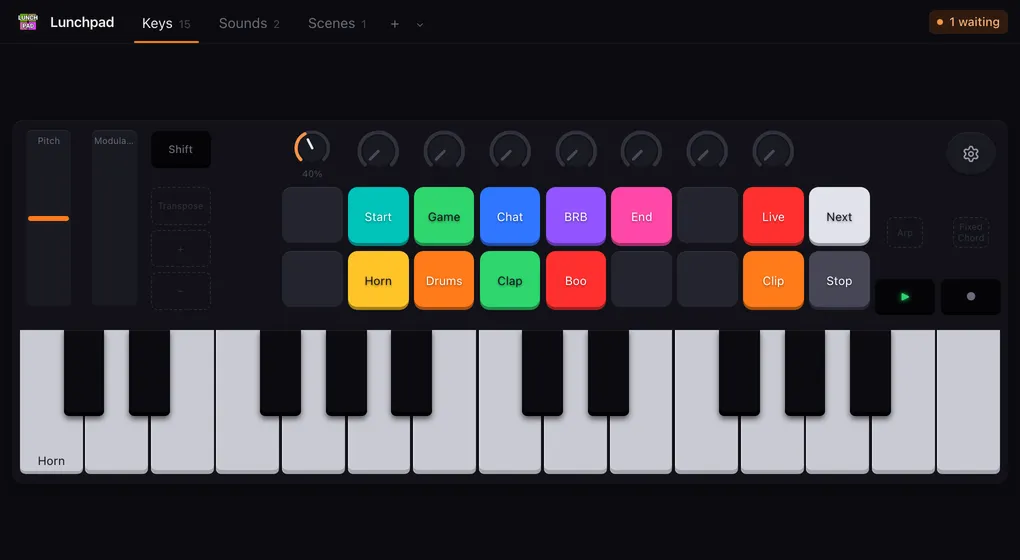
Connect it like any device: plug it in, pick it in the device list. Lunchpad puts it into DAW mode itself while it is connected, and hands it back when you disconnect or quit. There is nothing to set on the device first.
Launchkey Mini MK4
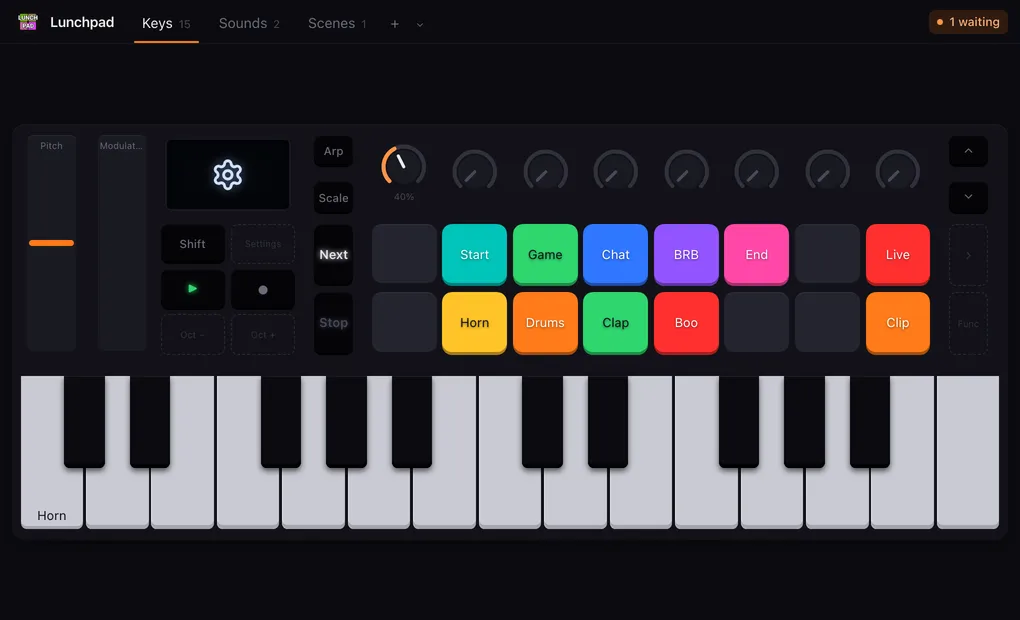
Section titled “Launchkey Mini MK4”The MK4 is drawn the way the front panel is laid out, down to the screen, which Lunchpad uses as the settings button.
| Part | What you can do with it |
|---|---|
| The 16 pads | Buttons, in full colour. Velocity sensitive and pressure sensitive, so both velocity and pressure work. |
| Track ∧ and ∨ | Buttons, in full colour. |
| ▶ and ● | Buttons. They have a white LED only, so a colour becomes its brightness. |
| Shift, the mode arrows right of the encoders | Buttons, without a light. |
| Arp and Scale | Buttons, without a light — but tap only, see below. |
| The 8 encoders and the two touch strips | One fader each, see below. |
| The 25 keys | Buttons, without a light: pressing the key runs the macro. |
| The screen | Lunchpad’s settings button. While connected, the screen shows the Lunchpad logo. |
| Settings, Oct −, Oct +, >, Func | Nothing. The keyboard keeps these for itself, so they are drawn greyed out. |
Arp and Scale report a tap only
Section titled “Arp and Scale report a tap only”The device reports these two as a toggle, once, and never reports a release. Lunchpad switches the function straight back off and adds the release itself, so a button on Arp or Scale has a pressed list only — no released actions, no held actions, and no hold time. The button editor says so:
This button reports a tap only: the device sends no release, so there are no released or held actions.
The surface stays Lunchpad’s
Section titled “The surface stays Lunchpad’s”While the MK4 is connected, Lunchpad keeps the pads in the layout it drives and the encoders in the mode it reads. If you change the pad layout or the encoder mode at the device, or switch Arp or Scale on there, Lunchpad puts it back. Disconnect to use the keyboard as a keyboard again.
Launchkey Mini MK3
Section titled “Launchkey Mini MK3”| Part | What you can do with it |
|---|---|
| The 16 pads | Buttons, in full colour. They are velocity sensitive, so velocity works. |
| Scene buttons (> and Stop Solo Mute) | Buttons, in full colour. |
| ▶ and ● | Buttons. They have a white LED only, so a colour becomes its brightness. |
| Shift | A button, without a light. |
| The 8 knobs and the two touch strips | One fader each, see below. |
| The 25 keys | Buttons, without a light: pressing the key runs the macro. |
| Transpose, Octave +/−, Arp, Fixed Chord | Nothing. The keyboard handles these itself and does not tell Lunchpad about them, so they are drawn greyed out. |
Faders on knobs and strips
Section titled “Faders on knobs and strips”A knob, an encoder or a touch strip holds exactly one fader; the hardware supplies the value, so there is nothing to light and no length to pick.
Right-click one and choose Assign a fader… (a plain click on a free knob does the same). Give it a range and the actions that should follow the level, exactly as for a fader made of pads. Once it has one, the same menu offers Edit fader… and Remove fader.
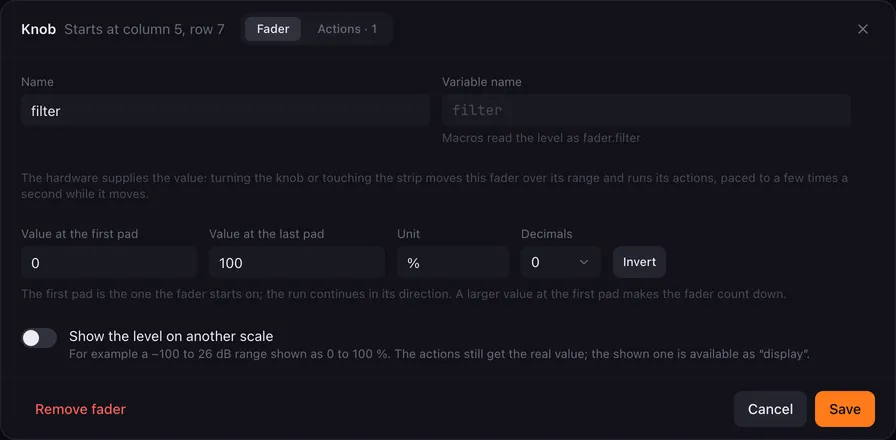
- Turning the knob or sliding a finger along the strip moves the fader over its range. The level follows your hand at once; the actions run once it comes to rest, so a fast sweep does not start hundreds of macros.
- Every macro can read the level as
fader.plus the fader’s name, like any other fader. See Variables and placeholders. - The pitch strip springs back to the middle, so Lunchpad draws its level as a bar rather than a fill. The modulation strip stays where you left it and is drawn as a fill.
A touch strip has three lists
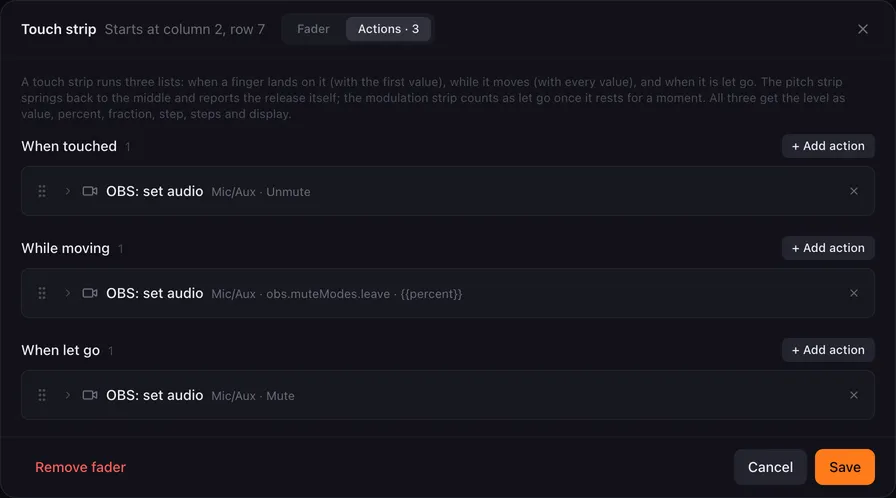
Section titled “A touch strip has three lists”A strip is not just a slider you can read: it knows when a finger lands on it and when it leaves. Its Actions tab has three lists instead of one.
| List | Runs… |
|---|---|
| When touched | when a finger lands on the strip, with the first value. |
| While moving | on every value while the finger stays down. |
| When let go | when the finger leaves. |
All three get the level as value, percent, fraction, step, steps and display, and {{trigger}} tells a shared macro which one is running (faderTouch, fader or faderRelease).
The two strips report the release differently:
- The modulation strip counts as let go once it has rested for a moment. The released actions get the last value you touched, and the level stays there.
- The pitch strip reports the release itself, and the actions get the value you let go at, not the middle. The spring back to the middle moves the level but runs nothing.
The keys
Section titled “The keys”Put a button on a key and playing that key runs its macro. The key still sends its note to anything else listening.
Lunchpad knows the keys at the keyboard’s default octave (C2 to C4). Press Octave + or Octave − on the device and the keys send other notes, which Lunchpad ignores, so buttons on keys stop responding until you return to the default octave. Lunchpad cannot see the octave change, because those buttons are the keyboard’s own.
On the MK3, with the device’s arpeggiator on, a held key repeats — and so does the macro.
When the keys and strips stay silent
Section titled “When the keys and strips stay silent”The pads, buttons and encoders arrive on the keyboard’s DAW port, which is the one the device list shows. The keys and the two touch strips arrive on its ordinary MIDI port, which Lunchpad opens alongside it. If that port is missing or another program holds it, everything else keeps working while the keys and strips report nothing.
On Windows only one program can hold a MIDI port at a time: close your DAW, Novation Components or another controller app, then connect again. See Troubleshooting.
Pages across devices
Section titled “Pages across devices”A page made for a Launchpad keeps its buttons when you connect a Launchkey, but the grids are shaped differently, so buttons can land where the Launchkey has no pad. They are kept, and Out of sight brings them back onto free pads. The same happens the other way round. See using pages on another model.
Buttons that land on a knob or a strip are treated the same way: those cells take a fader, not a button.