
Push-to-talk
Holds the push-to-talk key until the matching “off” marker.
- Where
- + Add actionFlowPush-to-talk on
- Comes with
- Push-to-talk off, added and removed as one set
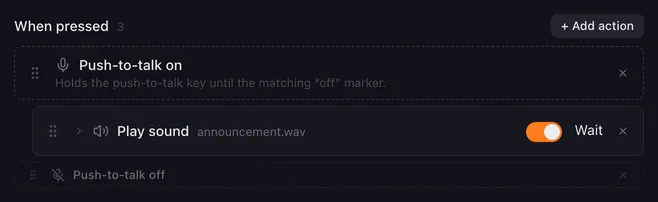
Push-to-talk holds your voice chat’s push-to-talk key while the actions between two markers run. Play a sound or a text-to-speech line into Discord or TeamSpeak, and your voice app transmits exactly as long as it plays.
The two markers
Section titled “The two markers”Adding push-to-talk adds two rows at once: Push-to-talk on and Push-to-talk off. Drag the actions that should be heard between them. The markers keep their order; removing one removes both, and the actions in between stay.
The markers have no settings. The key is set once for all buttons.
Set up the key
Section titled “Set up the key”- Open Settings → Keyboard & mouse.
- Switch on Hold a key while push-to-talk sections run.
- Under Key, press the same key your voice app uses for push-to-talk, and pick any keys to hold With it. A mouse button works too: the middle button or the side buttons. If your keyboard does not have the key (F13 to F20 make good push-to-talk keys because nothing else uses them), the arrow next to the key button opens a list to pick it from.
How it runs
Section titled “How it runs”- At Push-to-talk on, Lunchpad presses and holds the key, then waits 250 ms so the voice app notices before anything is heard. At Push-to-talk off, it releases the key and waits another 250 ms.
- Keep Wait on for the actions in between. If a Play sound has Wait off, the off marker follows right away and the key is released while the sound is still playing.
- Several macros share one key. It goes down with the first push-to-talk section that starts and comes up when the last one ends.
- If the setting is off or no key is set, the markers do nothing and add no pause.
- Stop all macros always releases the key.
On macOS, Lunchpad needs the Accessibility permission to press keys. See Troubleshooting.
Example
Section titled “Example”The announcement from the screenshot:
- Push-to-talk on
- Play sound:
announcement.wav, Wait on - Push-to-talk off
Related
Section titled “Related”- Settings — the push-to-talk key
- Hotkey sequence — press other keys
- Stop all macros