
System audio
Set, nudge or mute the volume of the speakers or the microphone, fixed or from a fader.
- Where
- + Add actionMediaSystem audio
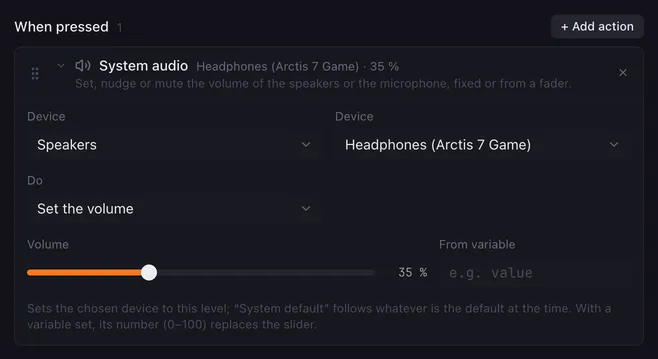
System audio changes the volume of your speakers or microphone, or mutes them. It works on the device that is the system default at the time, or on one device you name, so a pad can turn down your headset while the rest of the system stays as it is. The level can be fixed or come from a variable, so a fader on the Launchpad becomes a volume control.
Settings
Section titled “Settings”The editor has two fields labelled Device: the first picks speakers or microphone, the second which device of that kind.
| Setting | What it does |
|---|---|
| Device (first) | Speakers for an output, Microphone for an input. Changing it resets the device below. |
| Device (second) | System default follows whatever is the default when the macro runs. Otherwise pick one device by name; the list comes from your system. A device that is not connected stays selectable and is shown as “(not found)”. |
| Do | Set the volume to a level, Change the volume by a step, Mute, Unmute or Toggle mute. |
| Volume | For Set the volume: the level, 0 to 100 %. |
| Step | For Change the volume by: −50 to +50 %. Negative steps turn it down. The result never goes below 0 or above 100 %. |
| From variable | A variable whose number replaces the slider, for example value in a fader’s actions or fader.volume anywhere. If the variable does not hold a number, the slider value is used. |
How it runs
Section titled “How it runs”- The action has no Wait switch. The next action starts once the system has applied the change.
{{placeholders}}work in the device name, so{{room}} speakerspicks the device from a variable.- If the system refuses the change, the reason goes to the log and the macro goes on.
Example
Section titled “Example”A master volume on the Launchpad:
- Right-click a pad and choose New fader here…, range 0 to 100, unit
%. - On the fader’s Actions tab, under When the level changes, add System audio: Speakers, System default, Set the volume, From variable
value.
Two more buttons with Change the volume by −5 and +5 make fine steps. Pick a named device instead of System default to keep one output, for example your headset, on its own fader.
Related
Section titled “Related”- Faders — pads as a volume slider
- Switch audio device — pick which device is the default
- OBS & Streamlabs: set audio — the volume of one source in your streaming app