
Home Assistant
With Home Assistant connected, a pad can switch the desk lamp, dim the key light from a fader, close the blind, turn the speaker down or call any service of your smart home. Lunchpad talks to Home Assistant over its web API with a long-lived access token; nothing needs to be installed in Home Assistant.
Connect
Section titled “Connect”-
In Home Assistant, open your profile (your name at the bottom of the sidebar), go to the Security tab and, under Long-lived access tokens, click Create token. Give it a name like “Lunchpad” and copy the token. Home Assistant shows it only once.
-
In Lunchpad, open Settings (the gear on the corner pad) and choose Home Assistant under Integrations.
-
Switch on Connect to Home Assistant.
-
Enter the Home Assistant address, for example
http://homeassistant.local:8123orhttps://home.example.com, and paste the token into Long-lived access token. -
The status line shows Connected to Home Assistant, with its version, the name of your home and how many entities Lunchpad found.
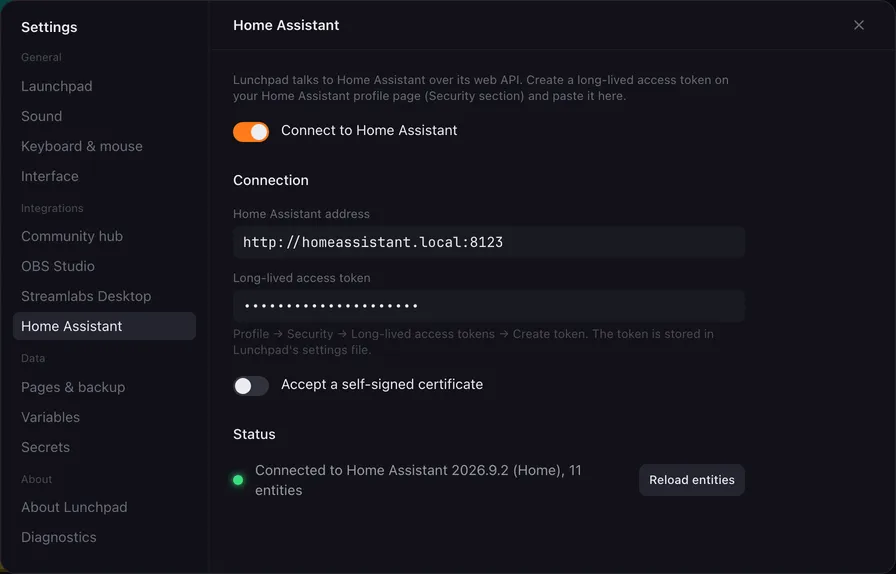
| Setting | What it does |
|---|---|
| Connect to Home Assistant | Switches the integration on. Off, the Home Assistant actions are hidden from the Add action menu, and existing ones do nothing. |
| Home Assistant address | Where Lunchpad reaches Home Assistant, with http:// or https:// and the port. |
| Long-lived access token | The token from step 1. |
| Accept a self-signed certificate | For an https:// address with a certificate your computer does not trust, such as one Home Assistant created itself. |
| Reload entities | Loads the list of entities again. |
How Lunchpad talks to Home Assistant
Section titled “How Lunchpad talks to Home Assistant”There is no connection that stays open. Lunchpad loads the list of entities when it starts, when you change these settings and when you click Reload entities (or Reload next to an Entity field). Every action is one request to Home Assistant, which waits up to 8 seconds for an answer.
The entity list is what the editors suggest when you type in an Entity field. Added a light in Home Assistant? Click Reload and it appears. You can always type an entity id by hand, also while Home Assistant is offline.
The actions
Section titled “The actions”A few ideas:
- On air: one pad starts the stream in OBS and turns on the “on air” sign with Turn on or off.
- Dimmer: a fader with Set a value → Brightness, From variable
value. - Scene lighting: the OBS scene buttons also call
scene.turn_onfor a matching light scene.
When it does not connect
Section titled “When it does not connect”The status line shows why:
| Message | What to do |
|---|---|
| the access token was rejected | The token is wrong, or it was deleted in Home Assistant. Create a new one. |
| could not connect | Check the address and the port, and that this computer can reach Home Assistant (open the address in a browser). |
| timed out | Home Assistant did not answer within 8 seconds. Check the address, or whether Home Assistant is busy restarting. |
| a certificate error | For a self-signed certificate, switch on Accept a self-signed certificate. |
| not found | After an action: the entity or the service does not exist. Check its spelling in Home Assistant. |
Errors from actions go to the log as well: Settings → Diagnostics → Open log folder.