
Flip flop
Actions up to the B marker run on every other press.
- Where
- + Add actionFlowFlip flop: A
- Comes with
- Flip flop: B, Flip flop: end, added and removed as one set
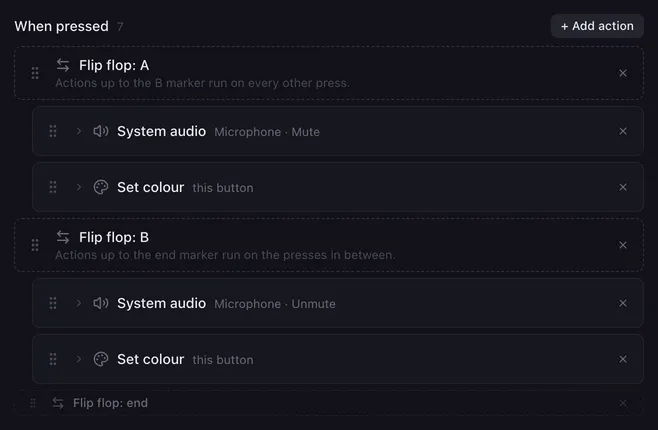
A flip flop turns one pad into a toggle. The first press runs the A actions, the next press the B actions, then A again. Use it for mute and unmute, lights on and off, or two scenes on one pad.
The three markers
Section titled “The three markers”Adding a flip flop adds three rows at once:
- Flip flop: A: the actions below it, up to the B marker, run on every other press.
- Flip flop: B: the actions between it and the end marker run on the presses in between.
- Flip flop: end: everything after it runs on every press.
Drag other actions between the markers to put them on a side. The markers keep their order and cannot be dragged past each other. Removing one of them removes all three; the actions in between stay.
The markers have no settings.
How it runs
Section titled “How it runs”- Lunchpad remembers which side comes next and saves it in your profile, so the toggle is still right after a restart.
- The side flips when a run reaches Flip flop: end. If the macro is stopped before that, the same side runs again next time. A second press while the first run is still going also runs the same side.
- A button can hold several flip flops; each keeps its own side.
- With Repeat while held, each repeat runs the other side.
Example
Section titled “Example”The microphone toggle from the screenshot:
- Flip flop: A
- System audio: Microphone, Mute
- Set colour: This button, red
- Flip flop: B
- System audio: Microphone, Unmute
- Set colour: This button, green
- Flip flop: end
Related
Section titled “Related”- Condition — branch on a variable instead
- Set colour — show which side is active
- Action lists