
Text to speech
Speak a text.
- Where
- + Add actionMediaText to speech
- Wait
- Has a Wait switch: on, the next action starts once this one is done
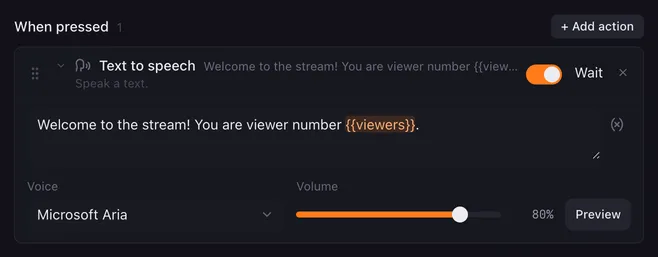
Text to speech reads a text aloud with a voice installed on your computer. Use it for spoken alerts, for reading back a counter (“Death number 12”) or for a value a web request fetched.
Settings
Section titled “Settings”| Setting | What it does |
|---|---|
| Text | What to say. Type {{ to insert a variable; placeholders such as {{deaths}} or {{velocity}} are filled in when the action runs. |
| Voice | One of the system’s voices, listed with its language. System default voice uses the voice your system is set to. If the chosen voice is not installed on this computer, the default voice speaks instead. |
| Volume | 0 to 100 % of the voice’s full volume. |
| Preview | Speaks the text now. Click Stop to end it early. |
How it runs
Section titled “How it runs”- With Wait on, the next action starts when the voice has finished speaking.
- Lunchpad speaks one text at a time. If a Text to speech action starts while another text is still being spoken, the new one is skipped and a note goes to the log. Keep Wait on when several speech actions follow each other.
- Stopping the macro stops the speech. Stop all macros stops any speech.
- If the system has no working speech engine, the action is skipped and the reason goes to the log.
Example
Section titled “Example”A death counter that announces itself:
- Add to variable:
deaths, add1, scope Everywhere. - Text to speech:
Death number {{deaths}}.
Related
Section titled “Related”- Play sound — play a recorded clip instead
- Variables and placeholders — what you can put between
{{ }} - Condition — say something only when a value is reached