
OBS Studio and Streamlabs
Lunchpad talks to OBS Studio and Streamlabs Desktop. Both integrations offer the same controls:
- switch scenes, also across scene collections,
- show or hide sources,
- mute, unmute and set the volume of audio sources,
- turn filters on and off,
- start, stop or toggle streaming, recording and the replay buffer,
- save the replay buffer,
- turn studio mode on or off, and push the preview scene live.
Buttons can also light up while a scene is live or a source is muted. See Active while.
Connect
Section titled “Connect”-
In OBS Studio (version 28 or newer), open Tools → WebSocket Server Settings and switch on the WebSocket server. Note the port and, if you set one, the password.
-
In Lunchpad, open Settings → OBS Studio and switch on Connect to OBS Studio.
-
Enter the Host (
localhostwhen OBS runs on the same computer), the Port (4455 by default) and the Password. -
Leave Connect automatically on so Lunchpad connects whenever OBS is running, or click Connect now.
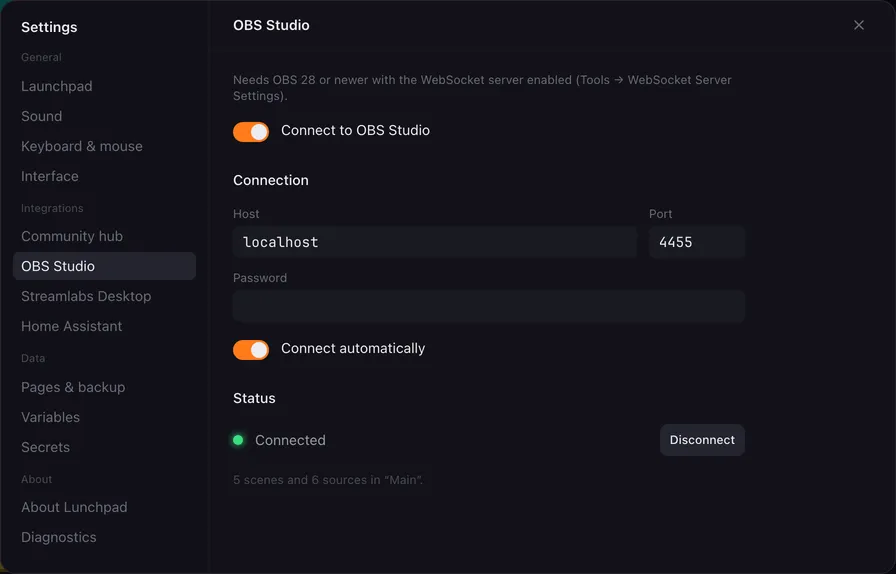
Once connected, the Status shows how many scenes and sources the current scene collection has.
-
In Lunchpad, open Settings → Streamlabs Desktop and switch on Connect to Streamlabs Desktop.
-
Leave Host and Port as they are when Streamlabs runs on the same computer. Streamlabs accepts connections from the same computer while it runs; there is nothing to switch on.
-
Leave Connect automatically on, or click Connect now.
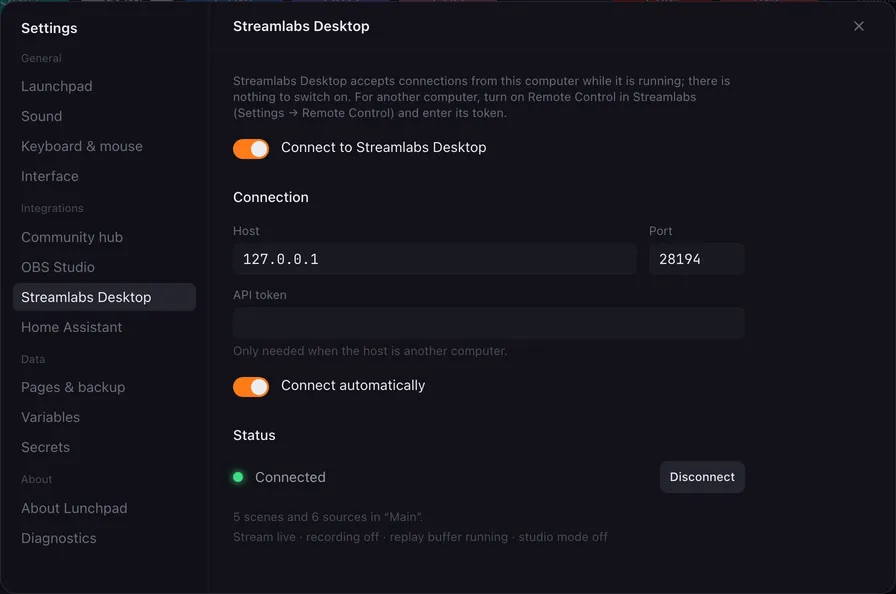
Once connected, the Status shows the scenes and sources of the current collection and whether the stream, the recording, the replay buffer and studio mode are on.
Streamlabs on another computer: turn on Remote Control in Streamlabs (Settings → Remote Control), enter that computer’s address as Host, and copy its token into API token. The token is only needed for another computer.
Use the actions
Section titled “Use the actions”After you switch an integration on, its actions appear in the + Add action menu under OBS Studio or Streamlabs. Integrations that are switched off stay out of the menu.
While the app is connected, the action fields offer its scenes, sources and filters in lists. Each action shows whether the app is connected, and Reload lists fetches them again after you changed something in OBS or Streamlabs.
Scene, source and filter names also accept placeholders, so a variable like {{nextScene}} can pick the scene.
The other way round, every macro can read what the apps are doing, without any set-up: {{obs.scene}} and {{slobs.scene}} hold the current scene, and {{obs.streaming}}, {{obs.recording}} and {{obs.connected}} (with their slobs. twins) are true or false. They are read the moment the action runs, so a condition can check whether you are live before a button does something, and a button description can show the live scene when you hover the pad.
The actions are documented one by one in the action reference:
- Switch scene
- Show or hide source
- Set audio
- Toggle filter
- Stream, record, replay
- Save replay
- Studio mode
- Trigger hotkey (OBS only) — anything else OBS can do through a hotkey, fired over the websocket without giving OBS the focus
Volume in dB or percent
Section titled “Volume in dB or percent”Set audio can take the volume in dB or in percent:
- In OBS, percent is OBS’s own volume scale from the advanced audio properties: 100 % is 0 dB.
- In Streamlabs, percent is the position of the mixer fader: 100 % is the top.
A 0 to 100 fader fits the percent scale directly.
If it does not connect
Section titled “If it does not connect”- Check that OBS or Streamlabs is running.
- For OBS, check that the WebSocket server is on and that port and password match. The Status line shows the error OBS reports.
- For Streamlabs on another computer, check that Remote Control is on and the token is current.
- See Troubleshooting for more.