
Buttons
A button is one pad on one page. Right-click a pad and choose Add button… or Edit button… to open the button editor. It has two tabs: Appearance for how the button looks, and Actions for what it does (see Action lists).
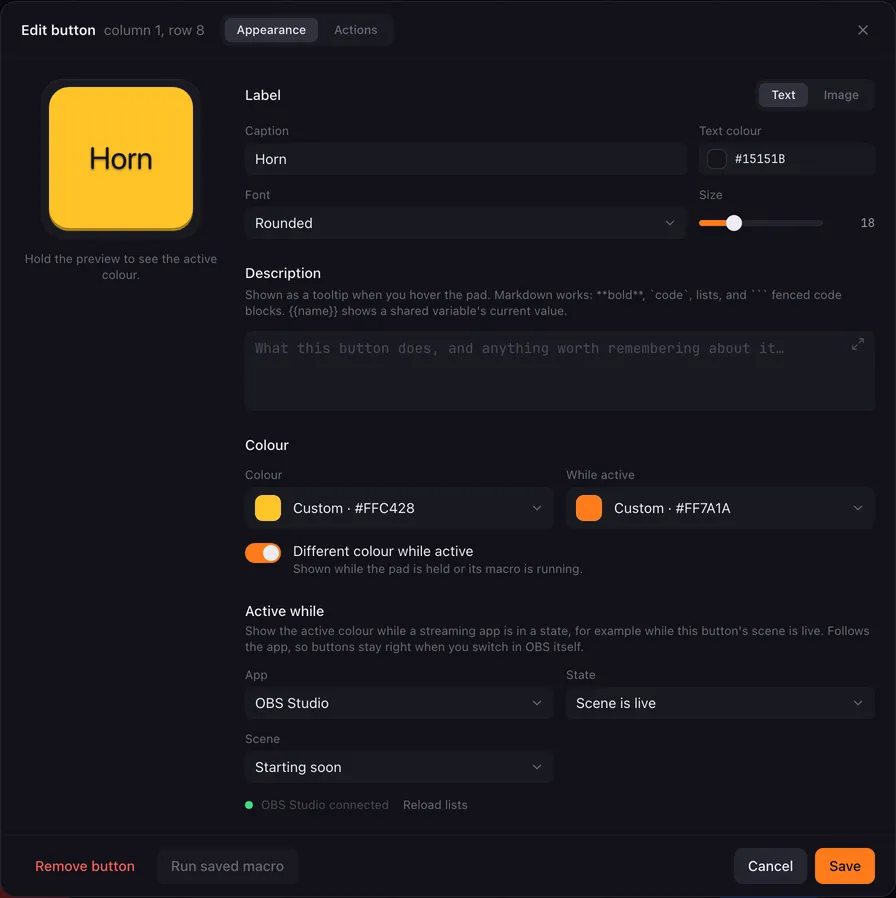
The preview on the left shows the pad as it will look. Press and hold the preview to see the active colour.
Choose Text or Image.
Text labels have a Caption, a Text colour, a Font and a Size. The fonts are Sans, Condensed, Serif, Mono and Rounded; they use the fonts your system has, so they can look slightly different on Windows and macOS.
Image labels show a picture instead: Choose image… accepts PNG, JPG, GIF, WebP or SVG up to 2 MB. The picture is stored inside your profile, so you can move or delete the original file afterwards.
Labels only appear in the window. The Launchpad shows the colour.
Description
Section titled “Description”A Description is a note to yourself about what the button does. Hover the pad in the window and it appears as a tooltip — handy when a page has thirty pads and the captions are four letters each.
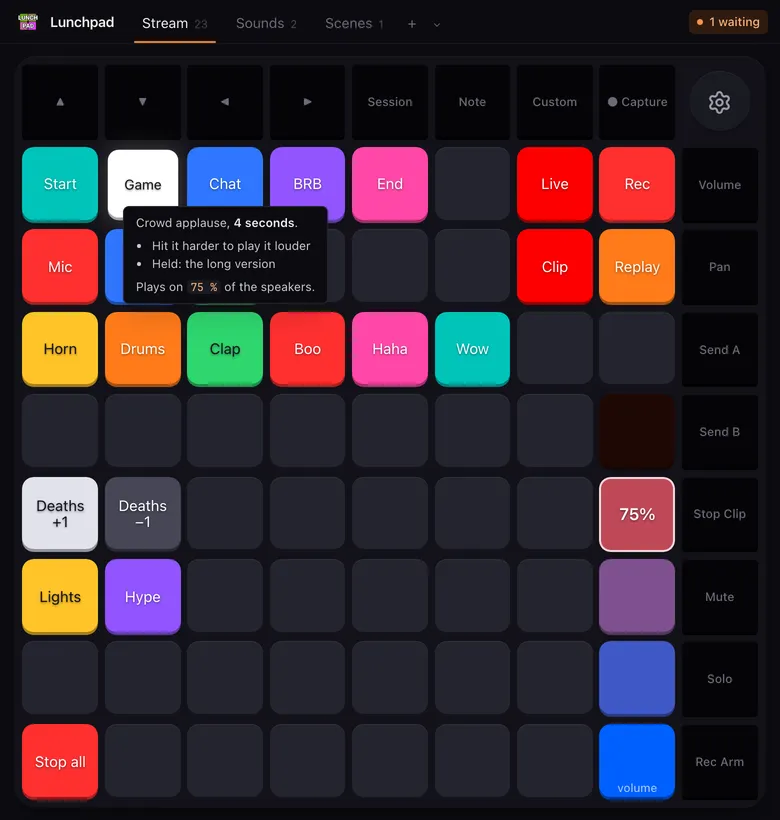
The field takes Markdown, so a description can have structure:
| Write | You get |
|---|---|
**bold**, *italic*, ~~strike~~ |
bold, italic, struck-through text. Asterisks only: _italic_ does nothing. |
`code` |
code, in the accent colour. |
#, ##, ### at the start of a line |
the three heading sizes. |
-, * or + and a space |
a bullet list. 1. or 1) makes a numbered list. Lists do not nest. |
> at the start of a line |
a quote. |
Three or more -, * or _ alone on a line |
a horizontal rule. |
``` around lines |
a code block, with the language after the opening fence. |
[text](https://…) |
underlined text. The address is dropped: a tooltip cannot be clicked. |
A single newline is a line break, unlike in most Markdown. Tables, images and pictures are not supported, and HTML shows up as text.
Code blocks are coloured for js / javascript, css, html / markup / xml and md / markdown. Other languages are shown as plain monospace, which is fine for a shell line or a bit of JSON.
Colour
Section titled “Colour”Click the colour field to open the colour picker. It has four modes:
| Mode | What the pad does |
|---|---|
| Solid | One colour from the Launchpad palette. |
| Flashing | Alternates between a First colour and a Second colour, in time with the Launchpad’s clock. |
| Pulsing | Breathes between bright and dim. |
| Custom | Any colour you pick. The LED shows the closest colour it can. |
The palette has the 128 colours the Launchpad knows, sorted with greys first and then by hue, brightest shade first. Off turns the LED off.
Red and green Launchpads (Launchpad S, Mini MK1 and MK2, original Launchpad) get a small palette of the colours they can show instead. See Supported Launchpads.
Colour while active
Section titled “Colour while active”Turn on Different colour while active to pick a second colour, shown under While active. A button is active:
- while you hold the pad,
- while one of its macros is running,
- while the state in Active while holds (see below).
This is how a button shows that something is going on, for example a long sound that is still playing.
Active while
Section titled “Active while”Active while shows the active colour while OBS Studio or Streamlabs Desktop is in a certain state. Because it follows the app, the button stays right even when you change things in OBS itself.
Choose the App (only integrations you have switched on in the settings appear), then the State:
| State | Active while… |
|---|---|
| Scene is live | the chosen Scene is the live scene. |
| Source is visible | the chosen Source is visible in the chosen Scene. Pick Live scene to follow whatever scene is live. |
| Source is muted | the chosen audio Source is muted. |
| Streaming | you are live. |
| Recording | a recording is running. |
| Replay buffer running | the replay buffer is on. |
Choosing a state turns on the active colour for you if it was off.
Saving, testing and removing
Section titled “Saving, testing and removing”- Save (or Ctrl + Enter, ⌘ + Enter on macOS) stores the button. Cancel or Esc throws your changes away.
- Run saved macro runs the button as it is saved: its pressed actions, then its released actions. Save first to test your changes; the button is disabled while there are unsaved changes.
- Remove button clears the pad. You can undo it from the notice or with Ctrl + Z.
To give the same button to several pads, use Copy and Paste in the right-click menu, or Shift and drag. See The main window.